







Introduction
If you’re wondering how to wrap text around an image in WordPress, this guide will walk you through every method step by step.
Simply placing an image above or below text can feel basic and visually flat. However, when you position text beside an image properly, your content instantly looks more structured and professional — similar to online magazines and high-quality news websites.
Many beginners struggle with aligning images in WordPress, especially when using the WordPress Block Editor. Instead of stacking everything vertically, you can position text beside an image for a cleaner layout.
Fortunately, WordPress offers multiple built-in block editor tools that allow you to create responsive, side-by-side image layouts without writing a single line of code.
In this guide, you’ll learn how to create a side-by-side image layout in WordPress, understand when to use each method, and improve both readability and overall WordPress SEO performance.
What Does It Mean to Wrap Text Around an Image in WordPress?
In simple terms, wrapping text around an image means placing the image on the left or right side of your content while the text flows beside it instead of appearing only above or below it.
Instead of stacking everything vertically, you create a side-by-side layout that feels more balanced and easier to scan.
Default Layout vs Wrapped Image Layout in WordPress
For example, let’s compare the two structures:
❌ Default layout:
Image
Text
Text
Text
✅ Wrapped layout:
Image | Text starts next to it
Image | More text flows alongside
Text continues below once the image ends
In contrast, the wrapped layout creates a more balanced and visually engaging structure instead of stacking everything vertically.
Additionally, in the WordPress Block Editor (Gutenberg), this can be done by adjusting image alignment settings or by using layout blocks like Media & Text or Columns.
As a result, your content appears more organized and easier to scan for readers.
Why Wrapping Text Around an image Improves Layout Design
Many beginners confuse this with simply adding an image between paragraphs. However, true WordPress image alignment allows text to automatically flow around the image, creating a more dynamic layout that improves visual rhythm.
From a practical standpoint, this technique is especially useful when you want to:
- Place author images beside bio text
- Add product images next to descriptions
- Improve blog post formatting
- Create magazine-style layouts
- Highlight key visuals without interrupting reading flow
If you’re trying to figure out how to place text beside an image in WordPress, you’re essentially looking to create this wrapped effect in a way that looks professional and works well across devices.
Quick Summary
- Text flows beside the image instead of stacking below
- Creates a balanced side-by-side layout
- Commonly used in blogs, product pages, and author bios
- Improves visual structure and readability
Why Wrapping Text Around an Image Improves Blog Design & Readability in WordPress
Text wrapping isn’t just about design; it directly affects user experience, engagement, and how long readers stay on your page.
When used correctly, it improves both aesthetics and functionality. Improves Reading Flow
1. Improves Reading Flow, Better Image Placement
Large blocks of text can overwhelm readers, especially on longer blog posts. When you position an image beside the text, it visually breaks the content into digestible sections.
This makes scanning easier, improves readability, and reduces bounce rates, particularly for mobile and tablet users who prefer structured layouts.
In real-world blog design, visual breaks often determine whether a visitor keeps reading or leaves.
2. Creates a More Professional WordPress Layout
Websites that use responsive image layouts in WordPress look more modern, intentional, and structured. For example, news sites, blogs, and business pages often use text wrapping to maintain visual balance between media and written content.
As a result, this design approach signals that the content is thoughtfully created, not just randomly published.
Ultimately, a clean and well-organized layout builds subtle trust with readers and enhances overall user experience.
3. Enhances Visual Hierarchy in WordPress Content
Images naturally draw attention. When placed beside text rather than above it, they support the content instead of interrupting it.
This improves storytelling, helps guide the reader’s eye, and reinforces important information without breaking the flow.
Good layout design supports your message instead of competing with it, just like customizing your WordPress comment layout improves overall user experience.
4. Supports Responsive Image Layout in WordPress
When implemented correctly (using proper blocks instead of outdated HTML), wrapped layouts adapt to different screen sizes.
On a desktop, content appears side by side.
On smaller screens, WordPress automatically stacks the layout for better usability.
This ensures your content remains readable across devices, which is essential for modern websites.
5. Boosts User Experience & WordPress SEO Signals
Search engines prioritize user experience. When visitors stay longer, scroll further, and interact more with well-formatted content, it can positively influence engagement metrics.
While text wrapping itself does not directly improve rankings, better formatting plays an important role in improving overall WordPress SEO performance by enhancing usability, increasing engagement, and supporting stronger on-page optimization strategies.
In short, wrapping text and images for a better reading experience isn’t just a styling choice — it’s a strategic content design decision that improves both user satisfaction and content presentation.
Key Points
- Breaks large text blocks into readable sections
- Creates a cleaner and more professional layout
- Improves visual hierarchy and content flow
- Enhances mobile readability and responsiveness
- Supports better user engagement signals
4 Easy Ways to Create a Side-by-Side Image Layout in WordPress
Now that you understand what text wrapping means and why it improves blog design, let’s move into the practical implementation.
Knowing the concept is helpful, but applying it correctly is what makes your content look professional.
If you’re using the WordPress Block Editor (Gutenberg), there are multiple ways to place text beside an image. Some methods are quick and beginner-friendly, while others offer more control over layout structure and responsive behavior.
Choosing the right method depends on your content type, image size, and overall design goals. Therefore, choosing the right method ensures your layout looks clean and professional.
Below are the four most effective methods to create a responsive image layout in WordPress.
Method 1 – Adjust WordPress Image Alignment to Place Text Beside an Image
This is the simplest and fastest way to wrap text around an image in WordPress. In most cases, it works well when you need a quick layout adjustment without restructuring your entire section.
How to Use WordPress Image Alignment to Wrap Text
- Open your post in the Block Editor.
- Add an Image block.
- Upload or select your image.
- Click on the image.
- From the toolbar, choose:
- Align Left, or
- Align Right
Once selected, your paragraph text will automatically flow beside the image. As a result, you achieve a basic wrapped layout without needing additional design elements.
Additionally, this method uses built-in WordPress image alignment settings to create a clean effect without adding extra layout blocks or complex styling.

When to Use Image Alignment in WordPress
- Short blog posts
- Simple layouts
- Author bio sections
- Small images
Quick formatting adjustments
If you’re publishing standard blog content and want a lightweight solution, this method is often sufficient.
Limitations
- Large images can break the layout
- May not look balanced on all screen sizes
- Limited control over spacing
- Less precise column control
Because this method relies on basic alignment, it may not always produce perfectly balanced results, especially on custom themes or narrow content widths.
If you’re looking for a quick solution for how to place text beside an image in WordPress, this is the fastest option. However, it’s best suited for simple use cases rather than advanced layouts.
Quick Recap
- Fastest way to wrap text around an image
- Uses built-in Align Left or Align Right options
- Best for small images and simple layouts
- Limited control over spacing and responsiveness
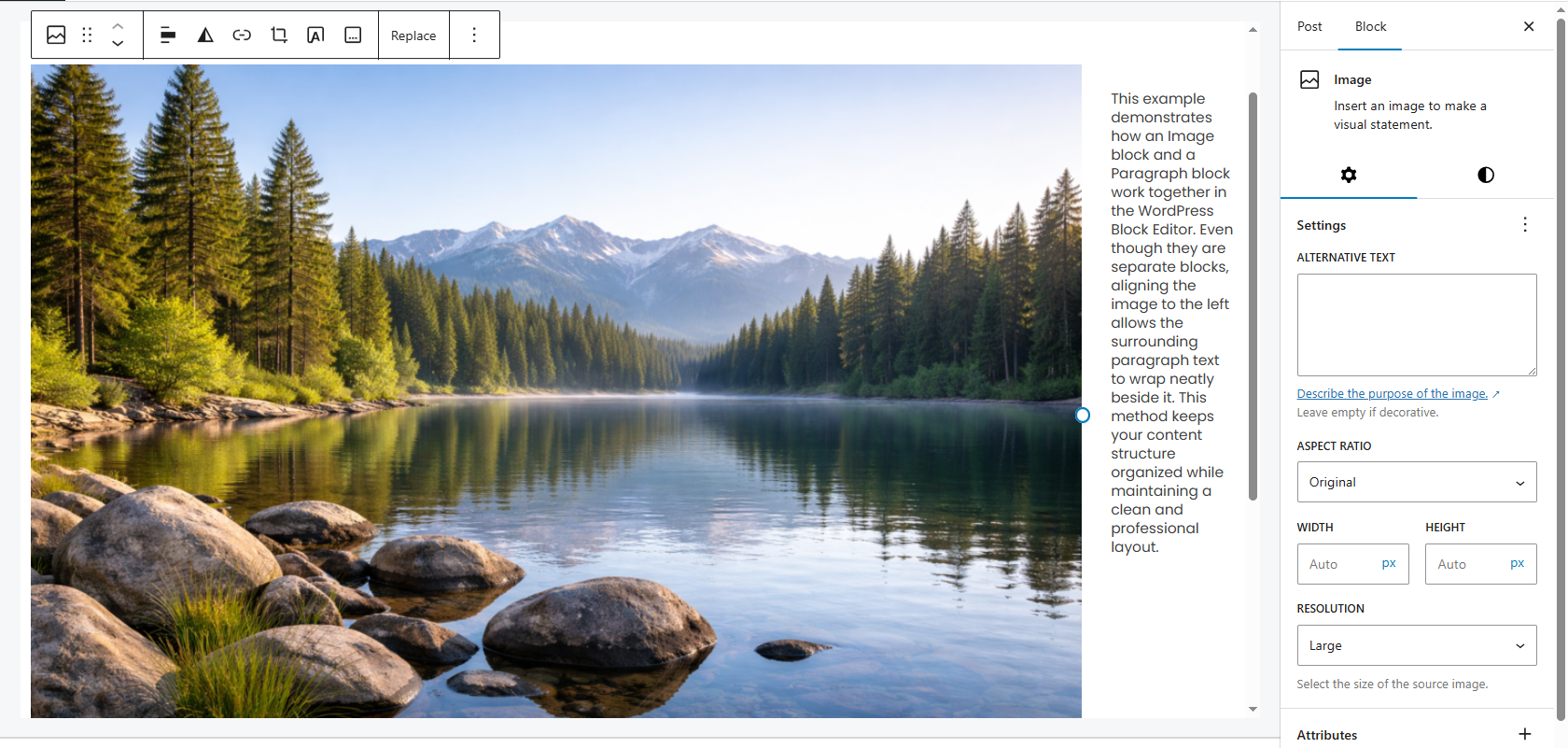
Method 2 – Using Image & Paragraph Blocks
This method gives you slightly more control than simple alignment because you intentionally structure your content using separate blocks.
Instead of relying only on image alignment, you can structure your content manually using:
- An Image block
- A Paragraph block
Place the image first, align it left or right, then immediately add your paragraph block below it.
The text will wrap around the image naturally while keeping the block structure clean and organized.
Why This Works Better
- Cleaner block structure
- Easier to adjust spacing
- Better content organization
- More predictable formatting
From a practical perspective, separating blocks gives you clearer control over where your content begins and ends. This makes future edits easier — especially if you update the image later.
However, this method still depends on alignment settings, so responsiveness may vary depending on your theme’s styling rules.
If your theme supports responsive image layouts in WordPress properly, this method works well for standard blog content and mid-length articles.
Key Points
- Separates image and text into structured blocks
- Offers better spacing control than simple alignment
- Keeps content editing clean and organized
- Responsiveness depends on your WordPress theme
Method 3 –Best Way to Wrap Text Around an Image in WordPress (Media & Text Block)
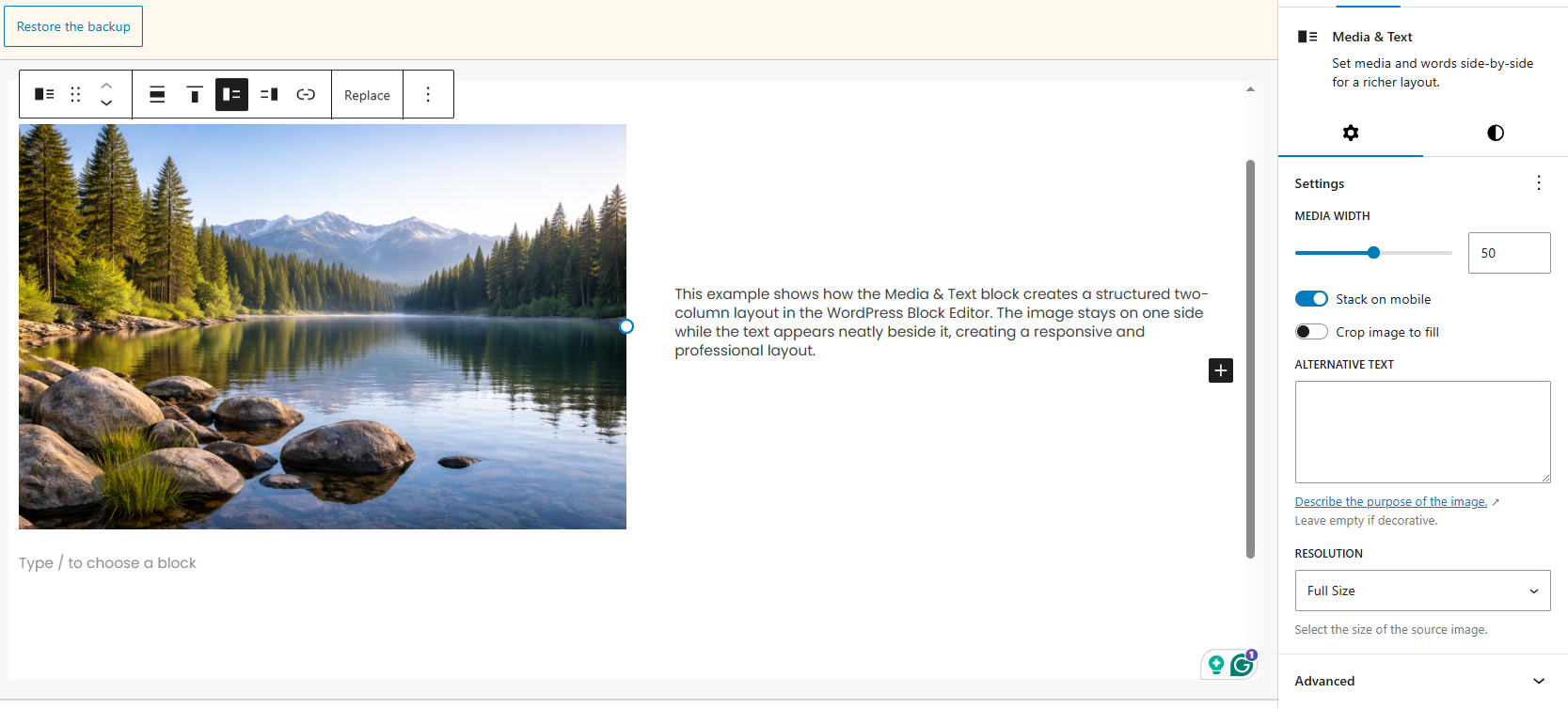
If you want a more professional and stable layout, the Media & Text block is the best built-in solution in the WordPress Block Editor.
Unlike simple alignment, this block is specifically designed to align text next to an image in a structured two-column format. It provides more predictable behavior across different screen sizes and themes.
For most users, this is the recommended method because it combines ease of use with responsive control. You can also explore the official WordPress Block Editor documentation to understand additional configuration options and layout capabilities available within the editor.
How to Add the Media & Text Block in the WordPress Block Editor
To begin, click the + (Add Block) button.
Next, search for Media & Text and insert the block.
After that, upload or select your image. Then, add your text in the text area beside it.
Once configured, WordPress automatically creates a two-column layout with media on one side and content on the other. As a result, your design looks structured and balanced without additional adjustments.
In comparison to manual alignment, this approach removes guesswork and prevents layout-breaking issues that sometimes occur with basic image positioning.
How to Align Text Next to an Image in WordPress
Inside the block settings panel, you can customize several layout options. For example, you can:
- Switch image position (left or right)
- Adjust vertical alignment
- Control image width percentage
- Enable stacking on mobile
Additionally, these settings provide controlled flexibility without requiring custom CSS.
Because of this, the Media & Text block becomes ideal for creating a responsive image layout in WordPress that works smoothly across desktop, tablet, and mobile devices.
From a practical standpoint, if you’re publishing long-form blog posts or professional business content, this method offers the best balance between design quality and simplicity.
Best Choice for Most Users
- Creates a built-in two-column layout automatically
- Fully responsive across desktop and mobile devices
- Offers image position and width control
- No custom CSS required for clean alignment
- Ideal for professional blog and business content
Method 4 – Wrap Text Around Image In WordPress Using the Columns Block
If you want full control over layout spacing, column width, and structure, the Columns block is a powerful option.
Unlike Media & Text, which has predefined behavior, Columns give you manual control over each section. This makes it suitable for more advanced layouts where design precision matters.
How to Use the Columns Block for Image and Text Layout
- Add a Columns block.
- Choose a two-column layout.
- Insert an Image block in one column.
- Insert a Paragraph block in the other column.
You can then adjust each column’s width, spacing, and alignment separately.
This method gives you more flexibility than Media & Text and allows greater customization.

When to Use Columns for WordPress Image Placement
- Landing pages
- Product descriptions
- Service pages
- Custom blog layouts
- Feature comparison sections
Because you manually control each column, this method works well for advanced responsive design setups and structured content layouts.
However, it does require slightly more attention to spacing and mobile preview testing.
If you need maximum design flexibility, Columns is the better choice.
If you want speed and simplicity, Media & Text remains the safer option.
Flexible Layout Option
- Provides full control over column structure
- Allows custom width and spacing adjustments
- Ideal for landing pages and service sections
- Requires manual mobile preview testing
- Best for advanced or structured layouts
Advanced Method to Control Image and Text Placement in WordPress Using CSS
If you want complete control over how text wraps around images in WordPress, using custom CSS is the most flexible solution.
While the Block Editor provides built-in layout options, advanced users often prefer CSS for more precise spacing, float behavior, alignment control, and responsive customization. To better understand how wrapping works at a technical level, you can review the CSS float property documentation, which explains how elements shift and allow surrounding content to flow beside them
This method gives you full styling authority — which is especially useful when you need consistent design across multiple posts or custom templates.
This method is especially useful if:
- Your theme overrides block styling
- Text wrapping is not working properly
- You want custom spacing or margins
- You’re building a custom WordPress layout
- You need pixel-level layout control
From a practical standpoint, developers and experienced site owners often rely on CSS when built-in blocks don’t provide enough flexibility.
Basic CSS Example Using Float
.wrap-left {
  float: left;
  margin: 0 20px 20px 0;
}

.wrap-right {
  float: right;
  margin: 0 0 20px 20px;
}
This code pushes the image to one side while allowing the surrounding text to flow naturally beside it.
The margin values create spacing between the image and text so the layout doesn’t look cramped.
Then, in your WordPress editor:
- Add an Image block.
2. Open Advanced settings in the block sidebar.
3. Add a CSS class:
- wrap-left
- or wrap-right
Now your text will flow naturally beside the image using your custom styling rules.
This approach works consistently across posts once the CSS is added to your theme’s Additional CSS section.
Making It Responsive
To ensure a responsive image layout in WordPress, you should add a media query:
@media (max-width: 768px) {
  .wrap-left,
  .wrap-right {
    float: none;
    margin: 0 0 20px 0;
    display: block;
  }
}
This ensures that on smaller screens, the float is removed and the image stacks above the text instead of squeezing the layout.
When to Use CSS Instead of Blocks
Use CSS wrapping when:
- You need pixel-perfect control
- You’re building a custom theme
- You want consistent styling across multiple posts
- The default WordPress image alignment is not behaving properly
- You need advanced spacing or layout overrides
However, for most beginners, built-in blocks are safer and easier to manage. They reduce the risk of layout conflicts and automatically handle responsive behavior.
If you’re not comfortable editing CSS, it’s usually better to stick with Media & Text or Columns blocks.
Common Mistakes to Avoid When Wrapping Text Around Images in WordPress
Even though wrapping text around images seems simple, many users unintentionally break their layout. Most issues happen because of sizing, spacing, or responsiveness mistakes.
1. Using Oversized Images in WordPress
Below are the most common mistakes to avoid.
Large images can push text too far down or break the layout completely, especially in narrow content areas.
✔ Always resize images properly
✔ Use appropriate image dimensions (especially when choosing the correct featured image dimensions in WordPress)
✔ Avoid full-width images for wrapped layouts
✔ Optimize images for web performance
Oversized visuals reduce readability, affect page speed, and negatively impact overall design balance.
A good rule of thumb: wrapped images should support content, not dominate it.
2. Ignoring Mobile Preview in WordPress Layouts
Many users check the layout only on a desktop.
But text wrapping behaves very differently on smaller screens.
✔ Always preview in mobile view
✔ Use responsive blocks like Media & Text or Columns
✔ Add media queries if using custom styling
✔ Test spacing on real devices when possible
A layout that looks perfect on a desktop can appear cramped or broken on smartphones if not tested properly.
Mobile readability is critical for user experience and overall engagement.
3. Overusing Text Wrapping in Blog Posts
Not every image needs text beside it.
- Make content feel crowded
- Reduce readability
- Distracted from key points
- Break the visual rhythm
Too many wrapped images can:
- Feature images inside content
- Product descriptions
- Author sections
Use wrapping strategically, especially for feature highlights, author sections, product descriptions, or key visuals.
White space is just as important as content.
4. Not Adjusting Image Spacing Properly
If there’s no margin between image and text, the layout looks cramped and unprofessional.
Always add spacing using:
- Block spacing settings
- Margin controls
- Custom CSS adjustments
Proper spacing significantly improves the reading experience and makes your layout feel intentional rather than accidental.
Small spacing improvements often make a big visual difference.
5. Mixing Multiple WordPress Layout Methods Incorrectly
Using Image Alignment, Columns, and custom styling together without structure can cause layout conflicts and unpredictable behavior.
Stick to one method per section for cleaner formatting and better responsiveness.
Consistency in layout approach improves both design quality and editing efficiency.
Bonus: How to Justify Text in WordPress
If you want a more structured and newspaper-style layout, you may also want to justify your text.
Justified text aligns content evenly on both the left and right sides, creating a clean and symmetrical appearance.
By default, the WordPress Block Editor does not include a direct “Justify” button in the Paragraph block toolbar. However, you can still justify text using custom styling or plugins.
Using Custom Styling for Text Justification
Add this CSS in your theme’s Additional CSS section:
.justify-text {
  text-align: justify;
}
Then:
- Select your Paragraph block.
- Open Advanced settings.
Add the CSS class: justify-text
This will evenly align text on both the left and right sides.
Using CSS gives you full control and keeps your site lightweight without adding extra plugins.
Method 2 – Using a WordPress Plugin to Justify Text
Some block editor enhancement plugins add a justify button directly to the toolbar, making it easier to apply alignment without writing CSS.
However, adding extra plugins just for text alignment is usually unnecessary unless you need additional formatting tools.
Too many plugins can increase maintenance and potentially affect site performance.
Should You Justify Text in WordPress?
Justified text can:
✔ Create a magazine-style appearance
✔ Improve visual symmetry
✔ Work well with wrapped layouts
✔ Enhance structured content presentation
However, on smaller screens, it may create uneven word spacing and awkward gaps.
Always preview on mobile before publishing to ensure readability remains smooth.
Use justification strategically rather than applying it to every paragraph.
How do I wrap text around an image in WordPress?
Frequently Asked Questions About Wrapping Text Around Images in WordPress
To wrap text around an image in WordPress, add an Image block, select the image, and choose Align Left or Align Right from the toolbar. The surrounding text will automatically flow beside the image. This method works best for simple blog posts and quick layout adjustments without using advanced blocks.
Yes, WordPress allows text wrapping using built-in block editor features. However, the final layout may depend on your active theme. Some themes apply custom styling that affects spacing and alignment. If alignment does not behave as expected, switching to the Media & Text block usually ensures better compatibility.
In the WordPress Gutenberg editor, you can wrap text by selecting an image and applying left or right alignment. For better responsiveness, use the Media & Text block, which automatically adjusts layout on mobile devices by stacking content vertically when the screen width decreases.
Yes, all text-wrapping methods are available in the free WordPress Block Editor. You do not need premium plugins to create side-by-side image layouts. Advanced users can optionally use custom CSS for greater control, but basic wrapping works without any paid tools.
To insert an image within your content, place your cursor where needed and add an Image block. While images are technically separate blocks, WordPress alignment settings allow them to visually appear beside text. For pixel-level positioning, custom CSS using the float property provides additional control.
Conclusion
Wrapping text around an image in WordPress is a simple yet powerful way to improve your blog’s layout and readability. It transforms basic vertical stacking into a more professional and structured presentation.
For a quick and easy solution, you can use standard image alignment settings. Those looking for a clean and responsive layout should consider the Media & Text block. When advanced control and customization are required, Columns or custom CSS provide greater flexibility.
The key is balance maintain proper spacing, test your layout on mobile devices, and avoid overcrowding your content.
When implemented strategically, wrapped layouts create a polished, magazine-style experience that enhances both visual appeal and user engagement. Choose the method that aligns with your content goals and apply it consistently across your website for the best results.