




You’re checking your portfolio website to show it to a potential client, or hoping to get a boost in traffic from a social media post you just shared. You type in your website address, press Enter, and instead of your beautiful homepage, you’re suddenly met with a blank white screen that says “there has been a critical error on this website WordPress.” Your heart drops. Your hands get sweaty. And for a moment, you wonder if everything you’ve built has been lost forever.
I’ve experienced this exact situation myself, and I’ve helped dozens of website owners fix it. The panic is real, but let me tell you something important right away: this error looks scary, but it’s almost always fixable. In most cases, you can bring your site back online in less than 30 minutes.
WordPress powers over 43% of all websites on the Internet. With so many websites depending on it from small personal blogs to massive online stores errors like these are actually very common. The WordPress support forums receive hundreds of reports each week about the same message: “A fatal error has occurred on this website.” So if you’re facing this problem, you’re not alone and you’re definitely in the right place to fix it.
What does a fatal error message mean?
When WordPress displays the “A fatal error has occurred on this website” message, it is basically saying, “Something has gone wrong, and I can’t show you the website right now.” Think of it like the check engine light on your car. The light tells you there is a problem, but it doesn’t tell you exactly what is wrong.
WordPress shows this common important error message to protect the security of your site. It doesn’t want to reveal technical details to visitors that hackers could use against your site. However, behind the scenes, WordPress knows what went wrong, and we can access those details to fix the problem.
The “A fatal error has occurred on this website WordPress” message may appear on your entire site, just the admin area, or just on specific pages. Where it appears can give us clues about the cause of the WordPress error.
Why does this error occur in WordPress?
Before we move on to the fixes, let’s understand what causes this fatal error in WordPress. Knowing “why” helps you fix it faster and prevent it from happening again.
plugin conflict
This is the number one cause of the “A fatal error has occurred on this website” message in WordPress. According to various WordPress support forums, plugin conflicts are responsible for approximately 60-70% of these errors. Here’s what happens: You install or update a plugin, and it doesn’t work well with another plugin, your theme, or your version of WordPress.
Imagine two people trying to use the same parking space at the same time. This essentially happens when two plugins try to do the same thing or use the same resources. WordPress crashes and shows fatal error because it doesn’t know how to handle conflicts.
Theme issues
Your WordPress theme controls how your site will look. Sometimes a poorly coded theme or a theme that has not been updated in a while can trigger the “A fatal error has occurred on this website WordPress” message. This especially happens if you update WordPress to a newer version, but your theme is not designed to work with it.
Critical theme-related errors often appear after you activate a new theme or update your current theme.
PHP memory limit issues
WordPress runs on PHP, a programming language that requires memory to operate. Think of PHP memory like the RAM in your computer. If WordPress doesn’t have enough memory to complete a task, it crashes and displays serious error messages.
Your hosting provider sets a default PHP memory limit, but sometimes that’s not enough, especially if you run a lot of plugins or have a complex WordPress website.
Corrupted WordPress Core Files
Key files are the foundation of your WordPress installation. Sometimes these files get corrupted during updates, when there is a problem with your hosting server, or due to a failed upload. When WordPress can’t access its core files properly, it triggers the “A fatal error has occurred on this website” message.
Server configuration issues
Sometimes the problem is not with WordPress but with your web hosting server. Issues like outdated PHP versions, incorrect file permissions, or server resource limitations can cause the WordPress fatal error to appear.
How to access your WordPress site when it’s down
When your website shows the “This website has encountered a fatal error on WordPress” message, you usually cannot access the WordPress admin dashboard. Don’t worry—there are other ways to get involved and fix things.
Using FTP or File Manager
FTP (File Transfer Protocol) lets you directly access your WordPress website’s files. You can use FTP software like FileZilla, or most hosting providers provide a file manager tool in their control panel (cPanel or similar).
To access via FTP, you will need your FTP credentials from your hosting provider. Once connected, you can view all your WordPress files and make changes to fix the critical error.
If you’re using the file manager through your hosting control panel, simply log in to your hosting account, find the File Manager option, and navigate to your WordPress installation folder (usually called public_html or www).
Accessing your database through phpMyAdmin
Your WordPress database stores all your content, settings, and configuration. Sometimes, to fix a serious error, you need to access it directly. Most hosting providers include phpMyAdmin in their control panel.
To access it, log in to your hosting control panel, find phpMyAdmin and select your WordPress database. Be careful here—making the wrong changes to your database can make your site worse. Make changes only if you are following specific instructions to fix the WordPress error.
Step-by-step solution to fix fatal error
Let’s now look at the actual fixes for the “A fatal error has occurred on this website WordPress” message. I recommend trying these solutions in order, as they are arranged from the most common to the least common causes.
Step 1: Enable WordPress Debug Mode
Before we start blindly making fixes, let’s figure out what exactly causes the fatal error in WordPress. WordPress has a built-in debug mode that shows you detailed error messages.
To enable it, you need to edit your wp-config.php file. Access your WordPress site via FTP or file manager, find the wp-config.php file in your root directory and open it for editing.
Find this line:
define(‘WP_DEBUG’, false);
Change this to:
define(‘WP_DEBUG’, true);
If you don’t see that line, add these lines right before the line that says “That’s it, stop editing!”:
define(‘WP_DEBUG’, true);
define(‘WP_DEBUG_LOG’, true);
define(‘WP_DEBUG_DISPLAY’, false);
Save the file and recheck your WordPress site. This creates a debug.log file in your wp-content folder that tells you what is causing the “A fatal error has occurred on this website” message. Open that file and look at recent entries—they’ll clue you in to the problem.
Step 2: Disable all plugins
Since most “This website has encountered a fatal error on WordPress” messages are caused by plugin conflicts, let’s fix those first. You can’t access the WordPress admin area, so we’ll disable plugins via FTP or file manager.
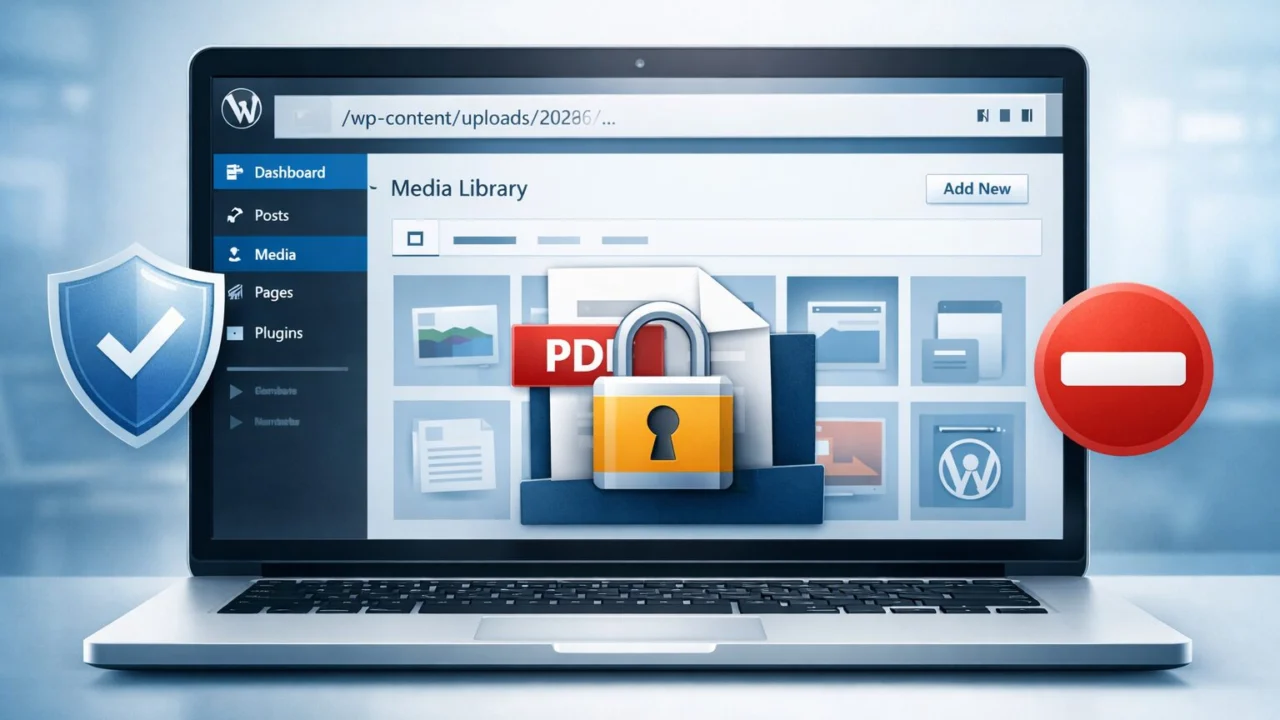
Access your WordPress site’s files and navigate to the wp-content folder. You will see a folder called “Plugins”. Simply rename this folder to “plugins_old” or “plugins_deactivated”.
This instantly disables all your WordPress plugins. Now check your website. If the critical error is gone and your site works, one of your plugins was the culprit.
To find out which plugin caused the “A fatal error has occurred on this website” message, rename the folder back to “Plugins”. Then go to plugins folder and rename each plugin folder one by one. After renaming each one, check your WordPress site. When your site starts working, you find the problematic plugin.
You can either remove that plugin, look for an updated version, or find an alternative WordPress plugin that does the same job.
Step 3: Switch to the Default WordPress Theme
If deactivating plugins doesn’t resolve the fatal error, your theme may be the problem. We’ll switch to a default WordPress theme to test it.
This is a little tricky because you need to access your WordPress database. Log in to phpMyAdmin through your hosting control panel and select your WordPress database.
Find the table called “wp_options” (the prefix may be different if you changed it during WordPress installation). Click on it and look for these two lines: “Template” and “Stylesheet.”
Change both values to the default WordPress theme, such as “twentytwentyfour” or “twentytwentythree”. Save your changes and test your site.
If the “This website has encountered a fatal error on WordPress” message is gone and your site now works, your theme is causing the problem. You need to either fix the theme, update it, or switch to a different WordPress theme.
Step 4: Increase PHP Memory Limit
If your WordPress site is still showing the fatal error, let’s try increasing the PHP memory limit. This gives WordPress more resources to work and may resolve the “A fatal error has occurred on this website” message.
First, edit your wp-config.php file again. “That’s it, stop editing!” Add this line just before:
define(‘WP_MEMORY_LIMIT’, ‘256M’);
This increases the memory limit for your WordPress site to 256 MB. Save the file and test your site.
If that doesn’t fix the WordPress fatal error, you can also try adding this line to your .htaccess file:
php_value memory_limit 256M
Are you still seeing the “A fatal error has occurred on this website WordPress” message? Contact your hosting provider and ask them to increase the PHP memory limit on your account.
Step 5: Check and Repair Your Database
WordPress includes a built-in database repair tool that can fix corrupted tables and resolve serious errors. To enable it, edit your wp-config.php file and add this line:
define(‘WP_ALLOW_REPAIR’, true);
Save the file, then visit this URL (replace yourdomain.com with your actual domain):
http://yourdomain.com/wp-admin/maint/repair.php
Click the “Repair Database” button. WordPress will scan and fix any issues that may be causing the “A fatal error has occurred on this website” message.
IMPORTANT: After the repair is complete, remove that line from wp-config.php. Leaving it active is a security risk as anyone can access the repair page on your WordPress site.
Step 6: Restore WordPress Core Files
Corrupted WordPress core files can cause the “A fatal error has occurred on this website WordPress” message to appear. The good news is that you can reinstall your content, plugins or themes without losing them.
Download the latest version of WordPress from WordPress.org. Extract the zip file to your computer. Delete the wp-content folder from the extracted files—this ensures you don’t overwrite your themes and plugins.
Now upload all the remaining files to your server using FTP, overwriting the existing WordPress files. This replaces your original WordPress files with new copies while keeping all your customizations intact and should fix the critical error.
Step 7: Contact Your Hosting Provider
If you’ve tried everything above and your WordPress site still shows the message “A fatal error has occurred on this website,” the problem may be on your hosting provider’s end. Server configuration issues, PHP version incompatibilities, or resource limitations may be the cause of the WordPress error.
Contact your hosting provider’s support team. Give them details of what you tried and any error messages from your debug.log file. They can check the server logs and configuration you can’t access and help resolve the WordPress critical error.
Good hosting providers will help you resolve these issues quickly. If your host is not helpful or issues persist, it may be time to consider switching to a more reliable hosting provider for your WordPress site.
How to prevent this error from occurring again
Once you fix the “A fatal error has occurred on this website WordPress” message, make sure it doesn’t come back.
Keep everything updated
Outdated plugins, themes, and WordPress core files are common causes of the fatal error. Make a habit of checking for updates on your WordPress site regularly – at least once a week.
However, before updating, always back up your WordPress site. Updates usually go smoothly, but having a backup means that if something goes wrong and the “A fatal error has occurred on this website” message appears again, you can quickly restore your site.
Use quality plugins and themes
Not all WordPress plugins and themes are created equal. Some are poorly coded and can cause conflicts or fatal errors. Stick to plugins and themes that have good reviews, regular updates, and active support.
Check when the WordPress plugin or theme was last updated. If it hasn’t been updated in more than a year, it’s a red flag. The developer may have abandoned it, and it probably won’t work well with the latest WordPress version, potentially triggering a “A fatal error has occurred on this website WordPress” message.
Regular backups are your safety net
I can’t stress this enough: regularly back up your WordPress site. Use a reliable backup plugin like UpdraftPlus or BackWPup to automatically backup your site daily or weekly.
Store backups in multiple locations, not just on your hosting server. Use cloud storage like Google Drive or Dropbox. If there is a problem with your hosting server and WordPress displays a fatal error, your backups will still be safe elsewhere.
According to a survey by WP Engine, almost 40% of small business websites do not have a backup strategy. Don’t be part of that statistic. The backup takes just a few minutes to set up, but it can save you hours or days of work if a “A fatal error has occurred on this website” message appears on your WordPress site.
Conclusion
The “A fatal error has occurred on this website” message in WordPress looks intimidating, but as you’ve seen, it can usually be fixed with a few simple steps. Most of the time, this happens because of plugin conflicts or theme issues, which you can resolve by deactivating the problematic plugin or switching themes.
When troubleshooting WordPress, always work step-by-step. First, enable debug mode to identify what’s causing the issue, and then apply each fix one at a time. This makes it much easier to track what actually solved the “there has been a critical error on this website WordPress” message.
Finally, remember: prevention is much easier than repair. Keep your WordPress site updated, use reliable plugins and themes, and maintain regular backups. These simple habits will help you avoid major errors and keep your site running smoothly.