



Running a WordPress multisite network offers amazing benefits, but it also brings unique security challenges. When you’re managing multiple sites under one installation, protecting your files becomes even more important. A security breach can affect your entire network, putting all your sites at risk. Let’s learn everything you need to know about keeping your files secure in 2025.
File security WordPress multisite strategies have evolved significantly over the years, and staying up to date with current best practices is essential for network administrators. Whether you’re running a small business network or managing hundreds of sites for clients, understanding these security fundamentals will save you countless headaches down the road. The good news is that with the right approach and tools, securing your multisite installation isn’t too difficult a task. This guide breaks down complex security concepts into actionable steps you can implement today. By the end of this article, you’ll have a complete roadmap to protecting your WordPress multisite network from modern threats.
Understanding WordPress Multisite and Its Security Challenges
What is WordPress Multisite?
WordPress Multisite is a feature that allows you to create and manage multiple WordPress websites from a single installation. Think of it as a powerful control center that manages many different websites. Schools, universities, large corporations, and web agencies often use this setup because it makes it much easier to manage multiple sites.
Instead of maintaining separate WordPress installations for each site, you get a shared codebase, one set of plugins, and one administrative dashboard that controls everything. Sounds convenient, right? It absolutely is, but convenience comes with responsibility.
Why does file security matter in multisite networks?
That’s the thing about multisite: When multiple sites share the same files and databases, a security problem on one site can quickly spread to others. According to a 2024 Sucuri report, compromised WordPress sites often experience file-based attacks, in which malicious files are uploaded or existing files are modified.
In a multisite environment, protecting your files is no longer limited to just one website. You are protecting the entire network. An insecure upload form, a misconfigured file permission, or an outdated plugin can create an entry point for attackers to access your entire network. Implementing strong file security WordPress multisite measures prevents these cascading failures from happening.
Common File Security Threats in WordPress Multisite
Unauthorized file access
Unauthorized file access occurs when someone gains access to files they shouldn’t. In multisite networks, this becomes especially dangerous because sensitive configuration files are shared across all sites. If an attacker gets access to your wp-config.php file, they potentially have the keys to your entire empire.
Malicious file upload
Users uploading files to your network may accidentally (or intentionally) upload harmful files. PHP files disguised as images, scripts hidden in seemingly innocent documents, or malware embedded in media files can all cause serious problems. According to research from Wordfence, file upload vulnerabilities remain one of the top attack vectors for WordPress sites in 2024.
Proper file security WordPress multisite protocols include scanning all uploads before they are stored on your servers and restricting what file types users can submit.
Cross-site contamination
This is a unique nightmare scenario for multisite networks. When one site on your network is compromised, the infection can spread to other sites. Shared themes, plugins, and upload directories can all become pathways for malware to travel between sites.
Essential File Security Strategies for 2025
Enforcing strong file permissions
File permissions are your first line of defense. They control who can read, write, or execute files on your server. File Security For WordPress multisite implementation, you need to get these rights.
Here’s what you should set up:
- Directories should be 755 (owner can read/write/execute, others can read/execute)
- Files must be 644 (owner can read/write, others can only read)
- wp-config.php should be 440 or 400 (readable only by owner)
These numbers may seem confusing, but they’re actually simple. The first number controls what the file owner can do, the second controls what the owner’s group can do, and the third controls what everyone else can do.
Securing the wp-config.php file
Your wp-config.php file contains your database credentials, authentication keys, and other sensitive information. In a multisite setup, this file is even more valuable because it controls the entire network.
Move this file one directory up from your WordPress installation if possible. Most servers allow this, and it adds an extra layer of security. You should also add specific rules to your .htaccess file to deny access to this file from the web.
Add these security keys and salts to your wp-config.php if you haven’t already. WordPress offers a generator that creates unique keys for your installation. These help encrypt the information stored in user cookies.
Securing .htaccess file
The .htaccess file controls how your server handles requests. In multisite, WordPress automatically creates and manages this file, but you can add additional security rules for the advanced file security required for a WordPress multisite setup.
Advanced .htaccess rules for multisite
You can add rules that prevent access to sensitive files, prevent directory browsing, and prevent users from executing PHP files in your upload directory. For example, blocking PHP execution in the uploads folder prevents attackers from running malicious scripts even if they succeed in uploading them.
Many security experts recommend adding rules that block access to files like readme.html, License.txt, and wp-config-sample.php. These files are not meant to be publicly accessible and can give attackers information about your WordPress version.
User role management and file access control
Limiting upload capabilities by user role
Not every user needs the ability to upload files. In fact, most should not have this permission at all. WordPress Multisite gives you detailed control over user capabilities.
Consider creating custom user roles that limit the actions users can take. A contributor may be able to write posts but should not upload media files. An editor can upload images but must not install plugins or themes.
According to WordPress security researchers, limiting upload capabilities significantly reduces your attack surface. The fewer people who can upload files, the less chance there is for something malicious to get through. This principle forms the cornerstone of effective file security WordPress multisite security architecture.
Network Admin vs Site Admin Permissions
It is important to understand the difference between a network administrator and a site administrator for multisite security. Network administrators have god-like powers over the entire network. They can install plugins, add new sites, and modify network settings. Site administrators only control individual sites.
Keep your network admin accounts limited and well-protected. Use strong, unique passwords and enable two-factor authentication. For daily site management, use site administrator accounts instead.
Best Security Plugins for WordPress Multisite
Top-Rated Multisite Security Plugins
Many security plugins work excellently with multisite networks. WordFence Security provides network-wide protection with a web application firewall and malware scanner. Sucuri Security provides file integrity monitoring and security hardening designed specifically for file security WordPress multisite environments
iThemes Security (formerly Better WP Security) includes multisite-compatible features like file change detection and brute force protection. All-in-One Security (AIOS) provides a user-friendly interface with network-wide security settings.
The main thing is to find a plugin that is explicitly compatible with multisite. Not all security plugins work well in network environments, so check compatibility before installing.
File Monitoring and Scanning Tools
File integrity monitoring keeps track of unauthorized changes to your files. You receive an alert when a file is modified, added, or deleted. This is incredibly valuable for multisite networks where changes may occur across multiple sites.
Plugins like Wordfence and Sucuri scan your files against the official WordPress repository to detect modifications. They can identify malware, backdoors, and suspicious code that shouldn’t be there.
Schedule a regular scan of your entire network. Weekly scans catch problems before they become disasters.
Server-level file security measures
Using SSL/TLS certificates
SSL/TLS certificates encrypt data transmitted between your server and users’ browsers. In 2025, it is no longer optional. Comprehensive file security requires that WordPress rely on multisite networks.
For multisite networks, you have two options: a single wildcard SSL certificate that covers your main domain and all subdomains, or separate certificates for each domain if you’re using domain mapping.
Google’s research shows that encrypted connections prevent man-in-the-middle attacks where attackers intercept data in transit. When users upload files to your network, SSL ensures that those files cannot be intercepted or modified during transmission.
Configuring server firewall
A web application firewall (WAF) sits between your website and incoming traffic, filtering out malicious requests before they reach your WordPress installation. Services like Cloudflare, Sucuri, and Wordfence provide WAF protection.
Your WAF should block common attack patterns such as SQL injection attempts, cross-site scripting (XSS), and suspicious file uploads. Configure it to be strict but not so aggressive that it blocks legitimate users.
Mod security rules for advanced security
ModSecurity is an open-source WAF that runs on your server. It uses rules to detect and block malicious traffic. For WordPress multisite, you can apply rule sets designed specifically to protect WordPress installations.
The OWASP ModSecurity Core rule set provides excellent baseline security. You can customize rules to block access to sensitive files, prevent directory traversal attacks, and prevent file upload exploits.
Backup Strategies for Multisite File Protection
Automated Backup Solution
Backup is your safety net. If all else fails, a good backup lets you restore your network to a working state.
For multisite networks, you need a backup solution that can handle the entire network, not just individual sites. UpdraftPlus Premium, BackupBuddy, and BlogVault all offer multisite-compatible backup solutions that complement your file protection WordPress multisite strategy.
Set up automatic daily backups of your files and databases. Store these backups in multiple locations: on your server, in cloud storage like Dropbox or Google Drive, and if possible in a different physical location.
Testing Your Backup Recovery Process
Here’s one thing most people forget: keeping backups doesn’t help if you can’t restore them. According to a 2024 study by VEM, 58% of businesses that tested their backups found problems in the recovery process.
Test your backup restores regularly on the staging environment. Make sure you can actually recover your entire multisite network, not just individual pieces. Document the process so that anyone on your team can perform a restore if needed.
Monitoring and detecting file changes
Real-time file integrity monitoring
File integrity monitoring compares your current files to a known good baseline. When files change, you are immediately notified.
Set up monitoring for important directories: wp-admin, wp-includes, your themes folder, and your plugins folder. Any changes to these directories should trigger an alert.
Some changes are normal. You’ll see changes when you update WordPress, install plugins, or modify the theme. The trick is to distinguish between legitimate changes and malicious changes.
Set up security alerts
Configure your security system to send alerts when critical events occur. You should be notified about failed login attempts, file modifications, new user registrations, and plugin or theme installations.
Don’t make the mistake of setting so many alerts that you ignore them. Focus on high priority events that require immediate attention. Low-priority events can go into a daily digest email instead. Effective file security WordPress multisite monitoring strikes a balance between awareness and alert fatigue.
Managing media library security across multiple sites
Prevent hotlinking
Hotlinking occurs when other websites link directly to images on your server, using your bandwidth without permission. In a multisite network with multiple sites, this can quickly become expensive.
Use .htaccess rules or plugins to prevent hotlinking. You can allow hotlinking from your own domain while blocking external sites. Some security plugins include hotlink protection as a standard feature.
Controlling media access
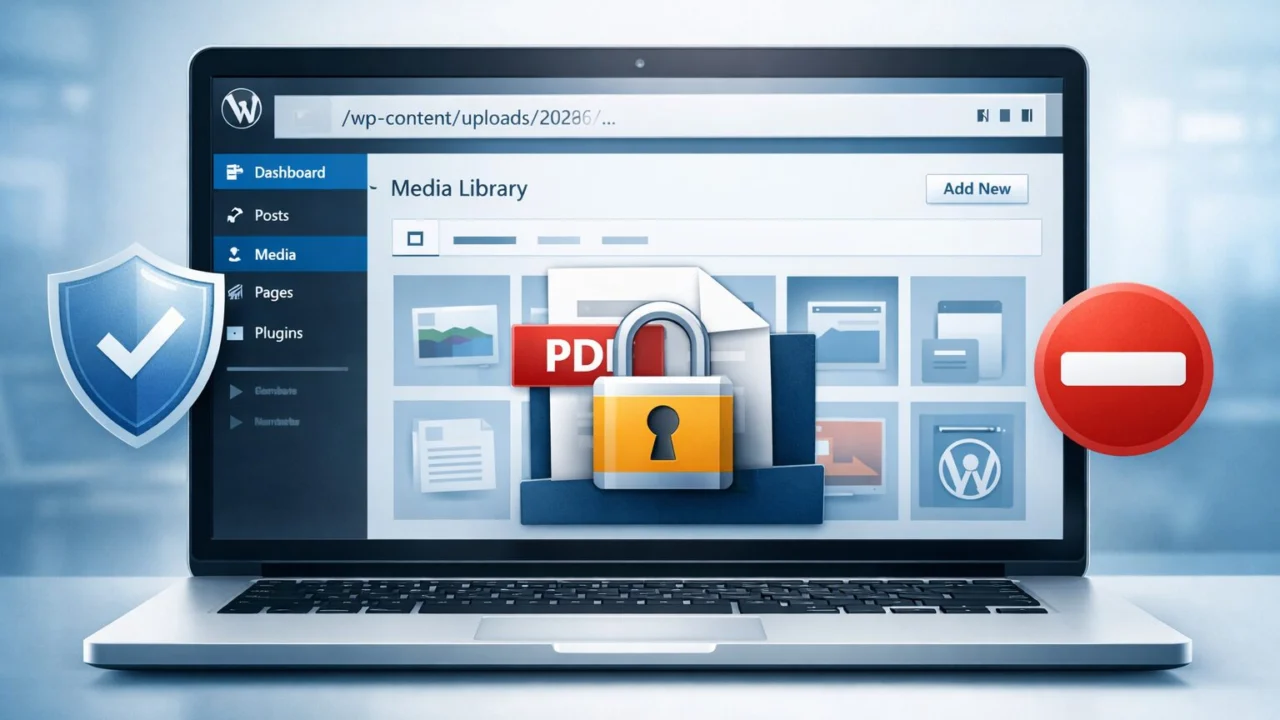
By default, WordPress media files are publicly accessible. Anyone with the URL can view or download them. Sometimes this is fine, but other times you need to restrict access to specific files.
For multisite networks, consider implementing a media access control system that checks user permissions before presenting files. Plugins like Prevent Direct Access create protected directories for sensitive files.
protection from brute force attacks
Two-factor authentication implementation
Two-factor authentication (2FA) adds an additional security layer beyond the password. Even if someone steals the password, he still can’t access the account without the second factor.
For multisite networks, implement 2FA for all network admin accounts and strongly encourage it for site admins. Plugins like WordFence Login Security and Two-Factor provide multisite-compliant 2FA that strengthens your overall file security WordPress multisite approach.
Google Authenticator apps work great for 2FA. Users install the app on their phones, scan a QR code and then enter the six-digit code along with their password when logging in.
Login attempt limits
Brute force attacks try thousands of password combinations in the hope of guessing correctly. Limiting login attempts stops these attacks in their tracks.
Set a reasonable limit like five unsuccessful attempts within 20 minutes. After that, temporarily block the IP address. This prevents automated tools from constantly trying passwords, while allowing legitimate users who have forgotten their password to make a few attempts.
For multisite networks, implement network-wide login security. You don’t want different sites to use different security policies.
Regular Maintenance and Updates
Keeping WordPress Core Updated
WordPress releases security updates regularly. According to WordPress.org, more than 40% of hacked WordPress sites were running outdated core software at the time of the compromise.
Enable automatic updates for minor releases. These usually include security patches and bug fixes. For major updates, test on the staging site first to ensure compatibility with your theme and plugins.
In multisite networks, updating the core affects all sites simultaneously. This is actually an advantage as you only need to update once instead of maintaining multiple installations. This centralized approach to file security greatly simplifies WordPress multisite maintenance.
Plugin and Theme Update Protocol
Outdated plugins and themes are common entry points for attackers. WPScan’s vulnerability database shows hundreds of plugin vulnerabilities discovered every year.
Create a regular update schedule. Check for updates weekly and apply them immediately. Before updating, read the changelog to understand what is changing. Test major updates on the staging environment first.
Remove any plugins or themes you are not using. Deactivated plugins can still be exploited if they contain vulnerabilities. According to Wordfence, attackers often target abandoned plugins that no longer receive security updates.
Creating a security policy for your multisite network
Document your security procedures in a comprehensive policy. This should include password requirements, update procedures, backup schedules, and incident response plans.
Your security policy should specify who has access to what. Clearly define roles and regularly review user permissions. Remove access for team members who no longer need it.
Include procedures for responding to security incidents. Who do people contact if they see something suspicious? What steps should they take? Having a clear plan prevents panic and ensures quick response times.
Train your team on security best practices. The human element is often the weakest link in security. Regular training helps everyone understand their role in keeping the network secure. A well-documented file security WordPress multisite policy ensures consistency throughout your organization.
Conclusion
Protecting files in a WordPress multisite network requires a multi-layered approach. From setting correct file permissions to implementing monitoring systems, each layer enhances your overall security posture. The key is to be proactive rather than reactive.
Start with the basics: strong file permissions, secure configuration files, and limited user access. Build from there with security plugins, server-level security, and regular monitoring. Don’t forget about backups – they’re your insurance policy when all else fails.
Remember that security is not a one-time job. It is an ongoing process that requires regular attention and updates. Stay informed about new threats, keep your software updated and regularly review your security measures.
The effort you put into file security today can prevent big headaches tomorrow. Your multisite network represents a significant time and investment. Protecting it properly ensures that the investment will be safe for years to come.