





Introduction
If you run a WordPress website that offers premium content, digital downloads, online courses, client documents, or membership resources, you must know how to prevent unauthorized access to media files in WordPress to protect your valuable assets.
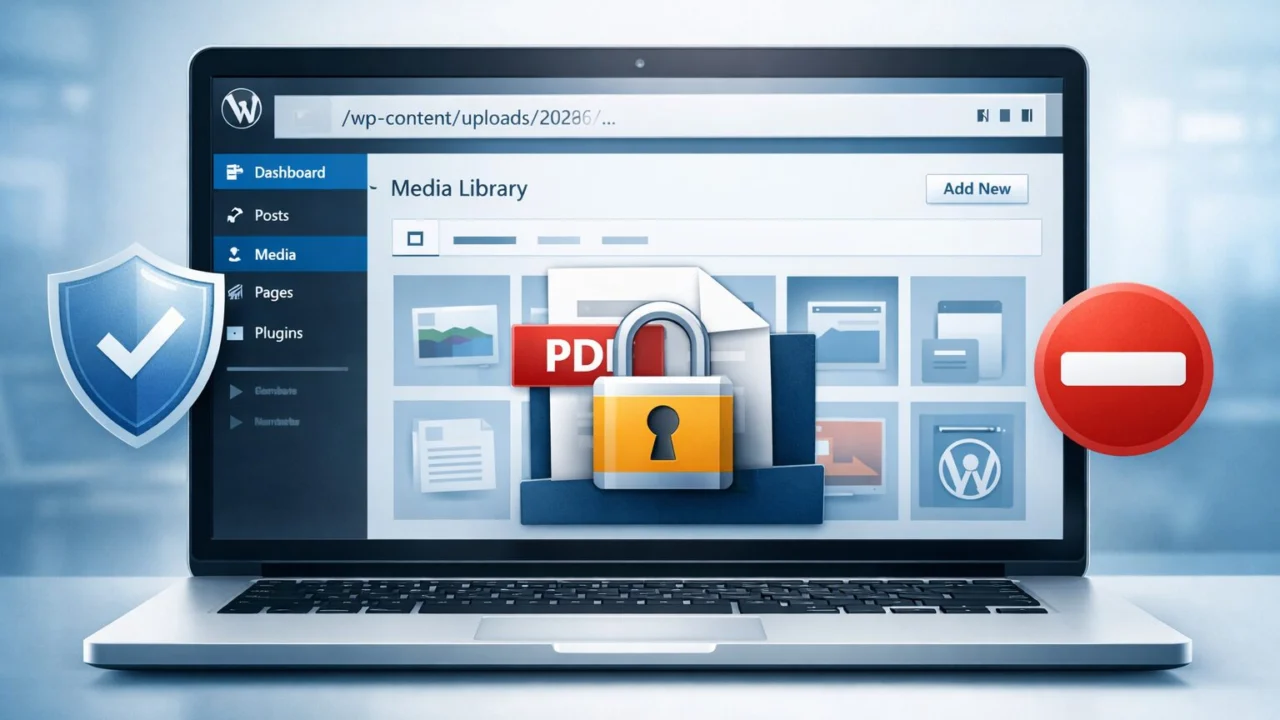
By default, WordPress stores uploaded files inside the /wp-content/uploads/ directory. These files are publicly accessible through their direct URLs unless additional restrictions are applied. As a result, even if a page is password-protected or limited to logged-in users, the actual media files can still be accessed directly.
Many website owners assume that restricting page access automatically protects the files attached to that page. However, WordPress does not secure media files at the file level by default. Without proper configuration, private PDFs, images, videos, or downloadable resources can be shared or accessed without authorization.
In this complete 2026 guide, you’ll learn how to prevent unauthorized access to media files in WordPress using server-level rules, access control techniques, and secure plugin-based solutions. Whether you manage a simple blog, a membership platform, or sell digital products, this guide will help you restrict direct file access, secure WordPress uploads, and control who can view or download your content.
Table of Contents
Why WordPress Media Files Are Public by Default
Before implementing any media protection strategy, it’s important to understand how WordPress handles uploaded files at a structural level.
Many website owners attempt to secure their pages without realizing that WordPress media security operates differently from content-level restrictions.
How the Uploads Folder Works
When you upload an image, PDF, video, or document through the WordPress Media Library, the file is automatically stored inside the:
When you upload an image, PDF, video, or document through the WordPress Media Library, the file is automatically stored inside the:
/wp-content/uploads/
WordPress organizes these files by year and month. For example:
yourwebsite.com/wp-content/uploads/2026/01/ebook.pdf
Because this file sits inside a publicly accessible directory, it can be opened directly in a browser using its full URL. By default, WordPress does not apply authentication checks to files inside the uploads folder.
In other words, the system treats media files as public assets unless additional access control rules are configured.

Understanding this structural gap is the foundation for building a secure WordPress media access strategy. Only after recognizing this limitation can you effectively prevent unauthorized access to media files in WordPress.
By default, WordPress does NOT protect media files at the file level. Even if your page is private or password-protected, the actual files inside /wp-content/uploads/ remain publicly accessible via direct URL.
- Restricting a page does NOT restrict its attached files
- Anyone with a direct file URL can download it — no login required
- Private PDFs, videos, and documents are exposed by default
- WordPress does not check user roles for direct file requests
Now that you understand the core vulnerability, let’s explore the proven methods to secure your WordPress media files properly.
The Direct File URL Limitation
The core limitation lies in how WordPress handles direct file requests.
When someone accesses a media file via its URL, WordPress does not verify:
- User login status
- User role permissions
- Page-level restrictions
- Membership access rules
This means that even if:
- A page is private
- A post is password-protected
- A course is restricted to members
The attached media file can still be downloaded if the direct URL is shared.
As a result, there is a separation between content protection and file-level protection in WordPress.
This type of improper access control is considered one of the most critical web application vulnerabilities, as documented in the OWASP Top 10 security risks.
This is the primary reason website owners struggle to prevent unauthorized access to media files in WordPress.
Why Images and PDFs Remain Publicly Accessible
Originally, WordPress was built as a publishing platform for blogs and public content. Therefore, most images, documents, and media assets were intended to be openly accessible.
From a design perspective, this makes sense for:
- Blog images
- Public downloads
- Marketing assets
- SEO-indexed media
However, when you start offering:
- Paid course materials
- Member-only resources
- Premium downloads
- Client documentation
- Licensed digital products
The default public accessibility becomes a security vulnerability.
Without server-level restrictions or plugin-based media protection, your private files remain exposed.
The Most Common Security Misunderstanding
One of the biggest misconceptions in WordPress security is:
“If my page is restricted, my files are restricted too.”
Unfortunately, this assumption is incorrect.
Page-level protection controls who can view content inside the WordPress interface. It does not automatically secure the underlying files stored in the uploads directory.
To properly secure WordPress uploads and restrict direct file access, you must implement additional layers of protection, such as:
- Server-level rules
- Direct URL blocking
- Role-based access control
- Media protection plugins
Understanding this structural gap is the foundation for building a secure WordPress media access strategy.
Only after recognizing this limitation can you effectively prevent unauthorized access to media files in WordPress.
What “Unauthorized Access” Actually Means in WordPress Media Files
Before implementing any security rules, it’s important to clearly define what unauthorized access means in the context of WordPress media protection.
Many site owners assume unauthorized access only refers to hacking attempts or malware attacks. However, in most cases, the issue is much simpler — users accessing media files in ways you did not intend, approve, or restrict.
Understanding these scenarios helps you properly prevent unauthorized access to media files in WordPress instead of applying random security fixes.

Let’s examine the most common situations.
Direct Link Access
This is the most frequent vulnerability in WordPress media security.
If someone has the exact URL of a file stored inside /wp-content/uploads/, they can open it directly in their browser.
Even if:
- They are not logged in
- They are not registered members
- They have not purchased your product
- The page itself is private or password-protected
WordPress does not automatically verify user permissions for direct file requests.
As a result, direct URL access becomes one of the biggest gaps in WordPress file-level security.
Media URL Sharing
Even when your content is restricted behind a login or membership system, users can copy and share the direct media file URL externally.
For example:
- A student shares a paid course PDF
- A client forwards a confidential document
- A team member leaks internal training material
Since the file URL remains static and publicly accessible by default, anyone who receives that link can download the file unless you’ve implemented direct URL blocking or access control rules.
For membership sites and digital product businesses, this creates significant revenue and content protection risks.
Downloading Private PDFs
PDF files are particularly vulnerable because they are easy to:
- Download
- Store offline
- Redistribute
- Re-upload to other platforms
If you sell eBooks, premium reports, course material, or licensed documents, unprotected PDF URLs can quickly lead to content piracy.
Without proper WordPress media access control, users can bypass your paywall simply by using the direct file link.
This is why protecting PDF downloads is often a top priority when securing WordPress uploads.
Hotlinking
Hotlinking occurs when another website embeds your media file using its direct URL instead of hosting its own copy.
For example, they may display:
- Your images
- Your videos
- Your downloadable assets
This can:
- Increase server load and bandwidth usage
- Slow down your website performance
- Expose premium content publicly
- Impact SEO if search engines index those files
Without hotlink protection or server-level restrictions, your media files can be reused anywhere online without permission.
Non-Member Access to Premium Files
For membership platforms, course creators, and subscription-based websites, this is one of the most serious risks.
Even if content pages are restricted:
- Expired members may still access bookmarked file URLs
- Non-members may receive shared links
- Users may directly save file URLs in their browser
This highlights a crucial reality:
Page-level protection does not equal file-level protection.
To truly prevent unauthorized access to media files in WordPress, you must control how files are delivered, not just who can view a page.
7 Proven Ways to Prevent Unauthorized Access to Media Files in WordPress
Now that you understand how WordPress media files remain publicly accessible by default, let’s move to the practical protection strategies.
Securing WordPress uploads is not about one quick fix. Instead, it involves applying the right level of control based on your website type — whether you run a blog, membership platform, digital store, or course website.
The following methods range from basic server-level hardening to advanced secure file delivery systems. In many cases, combining multiple layers will provide the strongest protection.
Method 1 – Disable Directory Listing to Protect WordPress Media Files
One of the simplest yet most overlooked security steps is disabling directory browsing.
Although this does not directly block file URLs, it removes one major vulnerability that exposes your uploads folder structure.
Why Directory Browsing Is Dangerous
If directory listing is enabled on your server, visitors can manually access folders inside:
/wp-content/uploads/
Instead of seeing a blank page, they may see a complete list of files stored in that directory.
This allows attackers or even curious visitors to:
- Discover unlinked or hidden files
- Access outdated uploads
- Locate sensitive documents
- Analyze your file naming structure
- Map your website’s directory architecture
Even when files are not publicly linked on your site, directory indexing can expose them.
From a WordPress media security perspective, this is an unnecessary risk.
Add Options -Indexes to Disable Directory Listing
If your site runs on Apache, you can disable directory browsing using the .htaccess file.
Follow these steps:
- Open your website’s root
.htaccessfile. - Add the following line:
Options -Indexes
- Save the file.
After implementing this rule, users attempting to access a folder directly will see a 403 Forbidden message instead of a file list.
This immediately improves baseline server security.

Why This Is Server-Level Protection
Disabling directory listing works at the web server level, not inside WordPress itself.
That means:
- It protects all directories automatically
- It does not depend on plugins
- It adds virtually no performance overhead
- It strengthens overall WordPress file security
However, it’s important to understand the limitations:
This method prevents folder visibility, but it does not block direct file URL access.
If someone already has the exact file URL, they can still open it.
Therefore, while disabling directory listing is an important first step to prevent unauthorized access to media files in WordPress, it must be combined with additional access control methods for complete protection.
Method 2 – Restrict Direct File URL Access to Prevent Unauthorized Media Access in WordPress
Disabling directory listing is a strong foundational step. However, it does not prevent someone from opening a file if they already have the exact media URL.
To properly prevent unauthorized access to media files in WordPress, you must block direct file requests inside the uploads directory.
This can be achieved using .htaccess rules on Apache-based servers, allowing you to enforce file-level access control at the server layer.
Block Direct Access to the Uploads Folder
To restrict direct access to specific media file types, create or edit an .htaccess file inside:
/wp-content/uploads/
Then add the following rule:
<FilesMatch "\.(pdf|doc|docx|xls|xlsx|zip)$">
Order Allow,Deny
Deny from all
</FilesMatch>
This configuration blocks direct browser access to selected file extensions such as:
- PDF files
- Word documents
- Excel spreadsheets
- ZIP archives
If a visitor attempts to open one of these files directly, the server will return a 403 Forbidden response.
You can modify the file extensions based on the types of digital assets you want to protect.
This method is especially useful for securing downloadable resources without relying on additional plugins.
Allow Logged-In Users Only (Advanced Rule)
If you want stricter control, you can configure access so that only authenticated WordPress users can retrieve media files.
For example:
RewriteEngine On
RewriteCond %{HTTP_COOKIE} !^.*wordpress_logged_in_.*$
RewriteRule ^(.*)$ - [F,L]
This rule checks whether the visitor has a valid WordPress login session cookie. If not, the request is denied.
As a result:
- Guests cannot download protected files
- Shared URLs become ineffective
- File access aligns with user authentication
⚠ Important:
This approach works only on Apache servers and must be tested carefully to avoid interfering with legitimate functionality.
When This Method Is Sufficient
Using .htaccess Rules are often enough when:
- You want lightweight server-level protection
- You manage a small membership site
- You need to secure PDF downloads or digital documents
- You prefer not to add extra plugins
- You want zero plugin performance overhead
However, this method does have limitations:
- It requires manual file editing
- Incorrect rules may break file previews
- It does not offer advanced role-based access control
- It lacks detailed download tracking
For more flexible and scalable protection, a plugin-based approach may be more suitable.
Using .htaccess rules is often enough when you want lightweight server-level protection without adding extra plugins or performance overhead.
.htaccess rules are powerful but must be applied correctly. Here are the key things to keep in mind before editing your server configuration:
- Always backup your .htaccess file before making any changes — a single mistake can break your entire website
- Place the rules inside /wp-content/uploads/.htaccess — not the root .htaccess file — to avoid site-wide conflicts
- After adding rules, test file URLs in incognito mode to confirm they return a 403 Forbidden response
- .htaccess only works on Apache servers — if you use Nginx, you need to configure rules inside the server block instead
- This method blocks direct access but does not replace role-based plugin protection — combine both for stronger security
For more flexible and scalable protection, a plugin-based approach may be more suitable alongside server-level rules.
Method 3 – Protect WordPress Media Files Using a Security Plugin id=”seven-methods.”
While manual .htaccess Rules provide strong technical control, they may not be practical for every site owner.
Security plugins offer a more accessible way to secure WordPress uploads and restrict direct file access — without modifying server configuration files.
They integrate directly with WordPress authentication, making media protection dynamic and easier to manage.

When a Plugin Is Better Than Manual Code
A plugin-based solution is often the better choice when:
- You operate a membership website
- You sell digital downloads
- You manage online courses or LMS platforms
- You require role-based media access
- You want automated access control
- You are not comfortable editing server files
Unlike static server rules, plugins can evaluate user roles, membership status, and login sessions in real time.
Logged-In Only Access
Most media protection plugins allow you to:
- Restrict access to logged-in users
- Limit downloads by user role
- Protect files based on membership level
- Block direct file URL access
- Hide the actual uploads directory path
Instead of serving files directly from /wp-content/uploads/, The plugin routes downloads through a secure handler that validates permissions first.
This ensures:
- Non-members cannot download protected content
- Expired subscriptions lose file access
- Shared links no longer work
- Premium resources remain controlled
Role-Based Restrictions
Advanced plugins provide granular permission control, allowing you to define access based on:
- Administrator-only access
- Editor or contributor visibility limits
- Member-only download rights
- Custom role permissions
This is particularly useful for:
- Multi-author websites
- Corporate portals
- Online academies
- Subscription-based platforms
Role-based media control creates a stronger security layer than simple URL blocking.
Protecting Private Downloads
In addition to blocking direct access, plugins can:
- Generate expiring download links
- Obfuscate real file paths
- Prevent hotlinking
- Log download activity
- Restrict file previews
These features are critical if you:
- Sell premium PDFs
- Offer paid templates
- Deliver client files
- Provide licensed digital content
Ideal for Membership & Course Websites
If you operate:
- An LMS platform
- A subscription-based membership site
- A digital product store
- A private client portal
A plugin-based solution is typically the most scalable and maintainable approach.
Unlike server-only rules, plugins align file access with WordPress authentication logic, ensuring that file protection adapts automatically as user roles or memberships change.
Best Plugins to Prevent Unauthorized Access to Media Files in WordPress
While server-level rules like .htaccess Provide strong baseline protection, many website owners prefer plugins because they simplify configuration and integrate directly with WordPress authentication and user roles.
If you’re new to WordPress security, WPBeginner provides helpful beginner-friendly guides on securing WordPress websites and managing media access effectively.
However, not all plugins offer the same level of WordPress media security.
Choosing the right solution depends on:
- Your website model
- The sensitivity of your files
- Your technical expertise
- The level of access control required
Before installing any plugin, it’s important to understand which features actually matter when trying to prevent unauthorized access to media files in WordPress.
What to Look for in a Media Protection Plugin
When evaluating a plugin for securing WordPress uploads and restricting direct file access, focus on the following capabilities.
1️⃣ Direct URL Blocking
By default, anyone with a media file URL can access it directly.
A reliable plugin should:
- Block direct access to
/wp-content/uploads/ - Replace public URLs with protected or routed links
- Validate user authentication before serving files
- Prevent bypassing page-level restrictions
Without direct URL protection, your private files remain exposed even if the page itself is restricted.
In some cases, poorly configured or outdated plugins can even lead to common WordPress errors caused by insecure plugins.
2️⃣ Role-Based Restrictions
If your website includes multiple user roles — such as Subscribers, Members, Students, or Clients — you need granular access control.
Look for plugins that allow:
- Restricting files by specific user roles
- Locking content behind membership levels
- Limiting downloads per user
- Dynamically adjusting access based on login status
This is essential for LMS platforms, subscription websites, and client portals.
Role-based file protection adds a significantly stronger layer than simple URL blocking.
3️⃣ Encrypted or Private File Links
Advanced plugins generate secure, temporary file URLs instead of exposing the actual file path.
This helps:
- Prevent permanent URL sharing
- Disable public indexing
- Protect premium downloads
- Add expiration rules
- Reduce unauthorized redistribution
Temporary or signed links are especially useful for paid digital products and licensed content.
4️⃣ Hotlink Protection
Hotlinking occurs when external websites embed your media using its direct URL.
This can:
- Consume your hosting bandwidth
- Slow down website performance
- Expose premium assets publicly
A strong media protection plugin should block unauthorized external domains from embedding or loading your files.
This protects both performance and intellectual property.
5️⃣ Cloud Storage Integration
For high-security or high-traffic setups, cloud integration adds another powerful layer.
Look for compatibility with:
- Amazon S3
- Cloudflare R2
- DigitalOcean Spaces
- Private object storage systems
Cloud-based storage with signed URLs is significantly more secure than hosting sensitive files directly in /wp-content/uploads/.
This approach is highly recommended for:
- Digital product stores
- Enterprise websites
- Large-scale membership platforms
Top WordPress Media Protection Plugins (Quick Comparison)
Below is a simplified overview to help match plugin type with use case.
Quick Comparison
Top WordPress Media Protection Plugins
A simplified overview to help match plugin type with use case.
| Plugin Type | Best For | Direct URL Protection | Role Restriction | PDF Protection |
|---|---|---|---|---|
| Plugin 1 | Membership Sites | ● Yes | ● Advanced | ▲ Basic |
| Plugin 2 | PDF & Download Protection | ● Yes | ● Yes | ● Strong |
| Plugin 3 | Lightweight Security | ▲ Limited | ▲ Basic | ▲ Limited |
| Plugin 4 | Advanced Cloud (S3) Integration | ● Yes | ● Yes | ● Yes |
Now let’s briefly examine each category.
Plugin 1 – Best for Membership Sites
Ideal for:
- LMS platforms
- Subscription-based websites
- Private communities
- Online course platforms
Strengths:
- Strong role-based media access
- Member-only file downloads
- Seamless integration with the WordPress login system
Best suited when content must remain restricted behind authenticated user accounts.
Plugin 2 – Best for PDF & Download Protection
Ideal for:
- Selling eBooks
- Delivering client documents
- Offering gated reports
- Protecting digital downloads
Strengths:
- Blocks direct PDF access
- Embed-only viewing options
- Expiring download links
- Download activity tracking
If PDF protection is your primary concern, this category offers stronger file control features.
Plugin 3 – Best Lightweight Option
Ideal for:
- Small blogs
- Basic content restriction
- Minimal technical setup
Strengths:
- Easy configuration
- Minimal performance impact
- Basic direct URL restriction
However, advanced role-based permissions and cloud integration may be limited.
Plugin 4 – Advanced Cloud Storage Integration
Ideal for:
- Digital product stores
- High-traffic membership sites
- Large media libraries
- SaaS-style platforms
Strengths:
- Signed temporary URLs
- Secure cloud-based delivery
- Improved scalability
- Better file path protection
This approach is commonly used by professional online education platforms and enterprise-level websites.
Which Plugin Should You Choose?
The right solution depends entirely on your business model.
- Simple blog → Lightweight media protection
- Membership site → Role-based access control plugin
- Premium PDF platform → Dedicated download protection plugin
- Digital product store → Cloud storage + signed URLs
The goal is not to install the most feature-heavy plugin, but to choose the solution that aligns with your content model and risk level.
When combined with server-level protection and proper access rules, the right plugin significantly strengthens your WordPress media security strategy.
The goal is not to install the most feature-heavy plugin — but to choose the solution that aligns with your content model and risk level.
Before choosing any WordPress media protection plugin, make sure it covers these essential features:
- Direct URL Blocking — Plugin must block access to /wp-content/uploads/ files without authentication
- Role-Based Access Control — Ability to restrict files by user role, membership level, or login status
- PDF & Download Protection — Secure delivery of downloadable files without exposing the real file path
- Hotlink Protection — Block external websites from embedding your media files directly
- Expiring Download Links — Temporary URLs that stop working after a set time period
- Cloud Storage Support — Compatibility with Amazon S3, Cloudflare R2, or similar secure storage
- Active Development — Plugin must be regularly updated and well-maintained
When combined with server-level protection and proper access rules, the right plugin significantly strengthens your WordPress media security strategy.
Method 4 – Restrict Media Library Access in WordPress Admin
Preventing unauthorized access to media files in WordPress is not only about blocking public file URLs. In many cases, the bigger risk exists inside the WordPress dashboard itself.
By default, the WordPress Media Library does not strictly isolate uploads by user role. As a result, users such as Authors or Contributors may be able to view media files uploaded by other team members.
This becomes a serious issue for:
- Multi-author blogs
- Membership websites
- Online course platforms
- Agency-managed WordPress projects
- Client-based portals
In these scenarios, internal media visibility can create privacy, workflow, and security concerns.

Limit Media Visibility by User Role
Out of the box, WordPress does not automatically restrict media files to “uploaded by current user only.” That means:
- An Author may see another Author’s uploads
- Contributors might access images unrelated to their posts
- Internal team members could download private client files
To prevent this, you can implement role-based media control using one of the following approaches:
- Use a media restriction or user role management plugin
- Adjust user capabilities with a role editor plugin
- Modify the
upload_filesandedit_others_postspermissions - Restrict Media Library queries to current user uploads only
By applying role-based access control, you ensure that users can only view and manage files relevant to their assigned permissions.
This strengthens internal WordPress media security and reduces unnecessary exposure.
Prevent Contributors from Viewing All Uploads
Although Contributors cannot publish posts, they may still have access to shared media files depending on your configuration.
To tighten backend access:
- Install a reliable role editor plugin.
- Review user capabilities carefully.
- Remove unnecessary permissions related to file management.
- Limit media visibility to “own uploads only.”
Some advanced security plugins also include Media Access Control settings that automatically restrict file visibility based on login status or role hierarchy.
This type of backend-level protection prevents internal unauthorized access — not just public exposure.
Why Backend-Level Protection Matters
Many site owners focus only on blocking direct file URLs. However, dashboard-level control is equally important for preventing unauthorized access to WordPress media files.
Internal access mismanagement can lead to:
- Accidental file misuse
- Unauthorized downloads by team members
- Client document exposure
- Premium resource leaks
- Workflow confusion
Therefore, a complete media protection strategy should include:
✔ Direct URL restriction
✔ Role-based plugin protection
✔ Media Library access limitation
✔ Server-level hardening
Unauthorized access does not always come from external attackers. Sometimes, it originates from insufficient internal permission control within your own WordPress admin panel.
By combining frontend and backend protection, you create a more secure and structured media management system.
Method 5 – Protect PDF Files from Being Downloaded
PDF files are among the most shared and redistributed media types in WordPress. Unfortunately, they are also the easiest to copy, download, and distribute without permission.
If your website offers premium downloads, training material, reports, or client documents, protecting PDF files becomes essential to prevent unauthorized access to media files in WordPress.
Why PDFs Are Easy to Share
When you upload a PDF to WordPress, it is stored inside:
/wp-content/uploads/
Because this directory is publicly accessible by default, anyone who obtains the direct file URL can:
- Download the PDF instantly
- Share the link publicly
- Re-upload the file elsewhere
- Bypass login or membership restrictions
Even if the page hosting the PDF is private, the file itself may still remain accessible via its direct URL.
This disconnect between page protection and file-level protection is one of the biggest WordPress media security gaps.

Prevent Direct Access to PDF Files
To properly secure PDF downloads, you need file-level control — not just page-level restrictions.
You can strengthen WordPress media protection by:
- Blocking direct access via
.htaccess - Restricting files to logged-in users only
- Disabling directory listing
- Using a media protection plugin
- Serving files through a controlled script instead of exposing the real URL
Advanced plugins rewrite file delivery so users never see the actual file path. This prevents link copying, source-code inspection, and direct file scraping.
When implemented correctly, this approach significantly reduces unauthorized downloads.
Embed Instead of Linking
Instead of directly linking to:
yourwebsite.com/wp-content/uploads/private-file.pdf
Embed the PDF inside a protected page using:
- Secure PDF viewer blocks
- Membership plugin shortcodes
- File protection plugins
- Custom file delivery handlers
Embedding reduces casual link sharing and adds an extra layer of content control.
While embedding alone does not fully prevent access, it discourages unauthorized distribution and improves user experience.
Use Watermarking for Extra Protection
If your PDFs contain high-value or proprietary content, watermarking adds a strong deterrent layer.
You can apply:
- Visible watermark (name or email address)
- Dynamic watermark per user
- Download tracking logs
- Unique identifiers per transaction
Watermarking does not fully prevent copying, but it discourages redistribution because files can be traced back to the original user.
This is especially useful for:
- Paid course materials
- Premium eBooks
- Licensed templates
- Corporate documentation
- Client-only resources
For maximum security, combine watermarking with URL protection and role-based access control.
Method 6 – Move Private Files Outside the Uploads Folder (Advanced)
If you require stronger protection than plugins or .htaccess rules provide, moving private files outside the public uploads directory is a highly secure server-level solution.
Instead of storing sensitive files in:
/wp-content/uploads/
You store them outside the public web root, for example:
/home/username/private-files/
Because this folder is not publicly accessible via URL, direct file access becomes impossible.
How This Method Works
After moving files outside the public directory, you:
- Create a custom PHP file handler
- Check if the user is logged in
- Verify user role or permissions
- Deliver the file only after validation
This ensures every download request passes through an authentication check before the file is served.
As a result, you eliminate public URL exposure entirely.
Why This Is More Secure
Compared to basic media protection methods, this approach:
- Removes direct file paths from public access
- Prevents URL guessing attacks
- Blocks hotlinking completely
- Allows full control over download logic
- Supports advanced access validation
For developers and advanced site owners, this is one of the strongest ways to secure WordPress media files.
Best For Membership & Course Website
This method is ideal for:
- LMS platforms
- Subscription websites
- Private content libraries
- Corporate portals
- Digital resource hubs
However, it requires:
- Server access
- PHP knowledge
- Careful testing
For beginners, plugin-based solutions may be safer. For developers, this is a highly effective media security strategy.
Method 7 – Use Amazon S3 or Cloud Storage for Secure File Delivery
For high-level scalability and enterprise-grade security, cloud storage solutions provide the most advanced way to protect WordPress media files.
Instead of serving files directly from your hosting server, you:
- Store files in Amazon S3 or similar object storage
- Generate temporary signed URLs
- Automatically expire access
This method enhances both performance and security.
What Are Signed URLs?
Signed URLs are temporary, encrypted links that:
- Expire after a specific time
- Cannot be reused indefinitely
- Cannot be guessed easily
- Require proper authorization
For example:
A user logs in → requests a download → system generates a secure link valid for 5 minutes → the link expires automatically.
Even if someone shares the link, it stops working after expiration.
This significantly reduces unauthorized media distribution.
Benefits of Cloud-Based Protection
Using S3 or similar cloud storage:
- Offloads server bandwidth
- Prevents direct file scraping
- Supports encrypted delivery
- Integrates with CDN systems
- Scales for high-traffic websites
For digital product businesses and online course platforms, this provides stronger file-level security than standard WordPress uploads.
High-Level Enterprise Protection
Cloud-based file delivery is best suited for:
- SaaS businesses
- Online course platforms
- Digital download stores
- Large membership communities
- Media-heavy websites
It combines:
✔ Secure storage
✔ Temporary authorization
✔ Access validation
✔ CDN performance
✔ Scalable infrastructure
Compared to basic WordPress file protection, this approach delivers enterprise-level media security.
How to Protect WordPress Media Files for Members Only
If you run a membership site, online course platform, or private resource library, securing your media files is absolutely critical. Simply restricting page visibility is not enough.
By default, WordPress does not verify user authentication when someone accesses a file directly via its URL. That means even if a course lesson or premium page is restricted, the actual file inside the uploads directory may still remain accessible.
To truly prevent unauthorized access to media files in WordPress, you need file-level protection layered with proper access control.

For Membership Sites & Course Creators
If your website offers:
- Paid online courses
- Premium downloads
- Member-only PDFs
- Private video files
- Subscription-based resources
Then, relying solely on page-level restrictions creates a serious security gap.
Unauthorized users can bypass your paywall if direct file URLs remain public. This is especially risky for LMS platforms and digital product businesses where content value is high.
For member-based websites, media security must integrate directly with your authentication system.
Many hosting providers restrict file editing access as part of WordPress security settings and file editor restrictions.
Restrict Downloads to Logged-In Users
To properly secure member-only media, you should:
✔ Use a plugin that restricts file access by user role
✔ Block direct access to media URLs
✔ Deliver files through controlled download handlers
✔ Prevent hotlinking
✔ Optionally track downloads for audit purposes
Advanced WordPress media protection plugins generate secure file links that only work when a user is authenticated and authorized.
This ensures:
- Non-members cannot access files
- Expired members automatically lose access
- Shared URLs stop working
- File delivery is dynamically validated
Instead of exposing raw file paths, the system verifies permissions before serving the content.
These controls align with established access control principles designed to prevent unauthorized file access, as outlined in Cloudflare’s Access Control Guide.
This is essential for any serious membership platform.
Combine Plugin + Server-Level Rules (Best Practice)
For stronger media file protection, combine:
- Role-based plugin access control
.htaccessdirect URL blocking- Proper file permission settings
- Optional cloud-based file delivery
This layered security model ensures that even if one control layer fails, other mechanisms still protect your media assets.
Security should never rely on a single configuration.
Common Mistakes That Leave WordPress Media Files Exposed
Even experienced website owners often assume their media is secure — until they test a direct file link in incognito mode.
Below are the most common mistakes that weaken WordPress media security.
1. Relying Only on Frontend Restrictions
Making a page private does not automatically protect the underlying file.
Anyone with the direct URL may still access it.
Always follow the official WordPress file permission recommendations outlined in the WordPress Hardening Guide and audit them periodically.
2. Forgetting to Block Direct URLs
Direct file access is the biggest vulnerability in WordPress media protection.
If this is not restricted:
- Files can be downloaded without a login
- Premium content can be shared publicly
- Search engines may index private documents
Blocking direct access is non-negotiable for secure file delivery.
Real-world vulnerabilities have demonstrated how missing file access checks can expose sensitive data, as highlighted in Wordfence’s analysis of a critical file access vulnerability.
3. Using Insecure or Outdated Plugins
Not all plugins truly protect media files.
Some only:
- Hide download buttons visually
- Mask links without blocking access
- Conflict with themes
- Break after updates
Choose well-maintained plugins with active development and test them thoroughly.
4. Ignoring File Permissions
Improper file permissions can:
- Allow unwanted file modification
- Increase vulnerability to injection attacks
- Expose sensitive configuration files
Always follow recommended WordPress file permission standards and audit them periodically.
For a more detailed breakdown of file-level protection strategies, see our guide on file security best practices in WordPress Multisite.
5. Not Testing Private File Links
After implementing protection, always test:
- Open the file URL in an incognito window
- Check access while logged out
- Test with lower user roles
- Copy and share the link
If the file opens without restriction, your protection setup is incomplete.
Security testing is part of security itself.
Security testing is part of security itself. After implementing protection, always verify that your setup is working correctly.
Even after setting up protection, these common mistakes silently undo all your security efforts:
- Relying only on page restrictions — Making a page private does NOT protect its attached files. Always secure at the file level too
- Never testing direct file URLs — Always open your file URL in an incognito window after setup. If it loads — your protection is broken
- Using outdated or poorly coded plugins — Some plugins only hide buttons visually but do nothing to block actual file access
- Ignoring file permissions — Wrong server file permissions can expose sensitive files to modification or unauthorized access
- Forgetting to block direct URLs — Without direct URL blocking, anyone with a file link can download it regardless of login status
- Setting up once and never auditing — Plugin updates, theme changes, or server migrations can silently break your protection setup
Now that you know what to avoid, let’s look at the final recommended strategy for complete WordPress media protection.
Best Method Based on Your Use Case (Decision Guide)
Not every website requires enterprise-level media security. The right solution depends on your content value and business model.
Here’s a simplified decision framework:
🔹 Simple Blog
Best Method: Disable directory listing + basic direct URL blocking
Ideal when:
- Files are not highly sensitive
- You want to reduce casual access
- You don’t sell digital products
🔹 Membership Site
Best Method: Role-based plugin + direct URL restriction
Ideal when:
- Access depends on user roles
- Premium resources are gated
- Membership expires automatically
🔹 Selling Digital Files
Best Method: Amazon S3 + temporary signed URLs
Ideal when:
- You sell downloadable products
- You need expiring secure links
- You require scalable, secure file delivery
🔹 Private PDFs or Internal Documents
Best Method: Direct access blocking + secure embedding
Ideal when:
- Sharing internal reports
- Delivering client files
- Needing basic but controlled protection
Final Recommendation
The most reliable way to prevent unauthorized access to media files in WordPress is to implement a layered protection strategy:
- Disable directory browsing
- Block direct file access
- Restrict by user role
- Secure PDF delivery
- Use cloud-based storage for high-value content
Think in terms of risk level and asset value.
The more valuable your media files are, the stronger and more dynamic your protection strategy should be.
True WordPress media security is not about hiding files; it’s about controlling access intelligently and consistently.
The most reliable way to prevent unauthorized access to media files in WordPress is to implement a layered protection strategy.
Not every website needs the same level of protection. Match your security strategy to your content value and business model:
- Disable directory browsing in your uploads folder immediately
- Block direct file URL access using .htaccess or a plugin
- Restrict file access by user role using a media protection plugin
- For high-value content — use cloud storage with signed URLs
- Always test direct file URLs in incognito mode after every change
In short, the best way to secure WordPress media files is to combine layered security controls with ongoing testing and proactive management.
Conclusion
Preventing unauthorized access to media files in WordPress requires more than a single security setting. Effective protection comes from a layered approach that combines server-level restrictions, direct URL blocking, proper file permissions, and role-based access control.
For sensitive content such as private PDFs, member-only downloads, or premium resources, adding secure file delivery methods like cloud storage or signed URLs further strengthens your media security strategy.
Equally important is regular testing. Always verify file access while logged out, check user role restrictions, and test direct media URLs to ensure your WordPress uploads are not publicly exposed.
Think proactively evaluate whether private files can be shared, indexed, or accessed without authorization. Strong WordPress file protection depends on continuous monitoring, plugin updates, and routine security audits.
Ongoing monitoring and maintenance are essential components of WordPress care plans that protect your site from hacks and errors.
In short, the best way to secure WordPress media files is to combine layered security controls with ongoing testing and proactive management. Media protection is not a one-time setup — it’s an ongoing process that safeguards your digital assets long term.