



Introduction
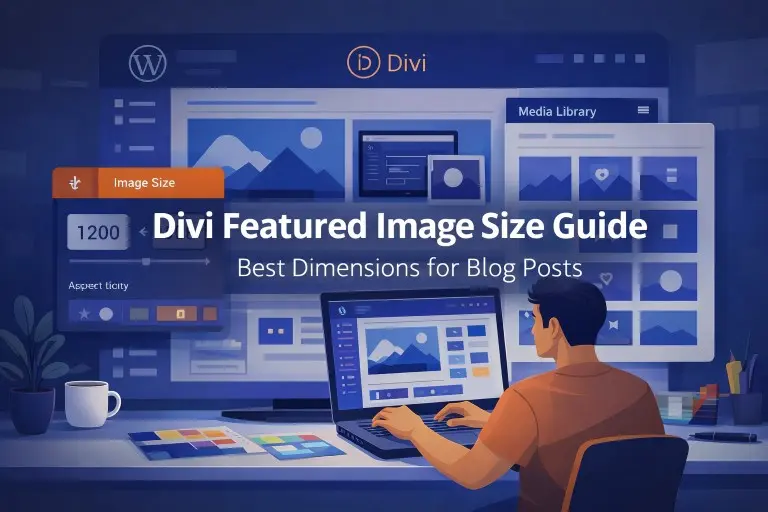
If you’re using the Divi theme on a WordPress site, you’ve probably run into a common issue: a featured image looks cropped, blurry, or stretched after publishing a blog post. In many cases, this happens because the WordPress featured image blog post Divi size doesn’t match how Divi modules display images.
Featured images are more than just decoration. They appear in blog feeds, post previews, category pages, and social media shares, making them one of the first visual elements visitors notice. A properly sized image helps your site design look clean, improves page speed, and keeps your content visually consistent across your theme and layouts.
The challenge is that Divi works as a flexible design platform that uses WordPress themes, modules, and content blocks. Different modules—such as the Blog module, media layouts, or post templates—may display images slightly differently. As a result, many beginners and even experienced developers struggle to choose the correct WordPress featured image blog post Divi size.
In this guide, you’ll learn the recommended featured image dimensions for Divi blog posts, how the Divi theme and WordPress media library handle images behind the scenes, and practical tips to keep your blog images sharp across desktop browsers, mobile devices, and modern hosting environments.
What is a Featured Image in WordPress
A featured image in WordPress is the primary image that represents a blog post, page, or custom content type. It acts as a visual preview of your content and helps readers quickly understand what the article is about before they even start reading.
Most WordPress themes—including Divi and other modern block-based themes—display the featured image at the top of the post or inside blog listings. It becomes part of the overall site design and content presentation, helping your posts stand out inside archives, blog feeds, and search results.
For beginners learning WordPress, the featured image is one of the first media elements they interact with in the editor. It works together with the theme layout, content blocks, and page design to create a consistent visual structure across the entire site.
A well-designed featured image can improve engagement, make your content easier to recognize, and support a more professional appearance for your blog.
Where Featured Images Appear in WordPress
WordPress displays featured images in many areas of a site.
. Depending on the theme, plugins, and layout settings, they may appear in several locations.
Common places where featured images appear include:
- Blog post listings on the homepage
- Category and archive pages
- The top section of individual blog posts
- Related posts widgets
- Post previews inside themes or page builder modules
- Social media previews when content is shared
Since WordPress displays the same image in multiple places, you should choose the correct WordPress featured image blog post Divi size. The right dimensions help maintain a consistent design across the site and prevent images from appearing distorted in different layouts.
For developers and content creators working with WordPress themes, blocks, and plugins, managing featured images properly ensures the site looks clean across the entire platform.
How Divi Uses Featured Images Differently
The Divi theme handles featured images differently compared to many traditional WordPress themes. Instead of relying only on the default layout system, Divi uses its own modules and visual builder tools to display content.
Modules like:
- Blog Module
- Portfolio Module
- Post Title Module
Can display featured images in different ways depending on the layout settings.
For example:
- A blog grid layout may show smaller thumbnail images
- A full-width blog layout may display a larger featured image
- Some modules may crop images automatically to match the design
Because Divi gives designers and developers more control over layout and content blocks, the same image may appear in several sizes across the site.
That’s why choosing the correct WordPress featured image blog post Divi size is important. When images match the expected layout dimensions, they appear sharper, load faster, and maintain visual balance throughout the website.
Why Featured Image Size Matters in Divi
Selecting the correct image dimensions plays a big role in how your site performs and how your content looks.
Divi works as a flexible WordPress design platform that uses modules, layouts, and visual editing tools. If you do not prepare the featured image size correctly, it can cause problems such as cropped images, slow page loading, or inconsistent layouts.
Using the correct WordPress featured image blog post Divi size helps maintain a better balance between design, performance, and user experience.
Impact on Page Speed
Image size directly affects how fast a page loads.
Large images increase the amount of data the browser needs to download. When images are not optimized, the page takes longer to load, especially on slower connections or mobile devices.
Fast websites are important for both users and search engines. Properly optimized images help reduce page weight and allow the browser to render content more efficiently. You can follow image optimization best practices recommended by Google to improve performance.
Website owners who optimize their images properly often notice improvements in site performance, hosting resource usage, and overall page speed.
Impact on User Experience
Images strongly influence how visitors perceive a website.
When featured images appear blurry, distorted, or poorly cropped, the overall design of the page can look unprofessional. Visitors may assume the site is poorly maintained or difficult to navigate.
Correct image sizing helps maintain visual consistency across blog posts, archives, and page layouts. When the images match the theme design, the content looks more polished and easier to read.
Maintaining the right Divi blog image size helps keep your site visually balanced across different layouts and devices.
Impact on SEO Rankings
Image optimization also contributes to search engine visibility.
Search engines like Google consider several factors when ranking pages, including page speed, content quality, and user experience. Large images that slow down a page can negatively affect these signals.
Properly optimized featured images improve loading speed and help search engines understand the context of your content. Adding descriptive file names and alt text allows images to appear in image search results as well.
For WordPress websites using Divi, managing the correct featured image dimensions and media settings can support better technical SEO and improve overall site performance. Businesses that want to grow their search visibility may also consider working with a professional WordPress SEO agency.
Impact on Social Media Sharing
Featured images are also used when content is shared on social media platforms such as Facebook, LinkedIn, Pinterest, and X (Twitter).
When someone shares a blog post, these platforms automatically pull the featured image to create a preview card. This preview includes the image, post title, and short description.
If the image size is not optimized, the preview may appear cropped or low quality. Poor image presentation can reduce the chances that people will click on the shared link.
Using the correct WordPress featured image blog post Divi size helps ensure that your content appears clean and visually appealing when shared across social platforms.
Many website owners intentionally design their featured images to work well both inside their Divi blog layout and social media previews, improving visibility and increasing click-through rates.
Recommended WordPress Featured Image Blog Post Divi Size
Choosing the right WordPress featured image blog post Divi size helps your images display correctly across your entire site. Featured images appear in several places — blog listings, post previews, category pages, and even social media previews — so the correct dimensions are important for maintaining a consistent design.
Because the Divi theme uses flexible layouts, modules, and content blocks, images may appear in different sizes depending on the section of the page. Starting with the proper dimensions helps prevent common problems like cropping, stretching, or poor image quality.
A well-sized featured image also improves the overall media performance of your WordPress platform, ensuring that your blog posts look sharp across modern browsers, mobile devices, and high-resolution screens.
Standard Blog Post Featured Image Size
For most Divi websites, the recommended Divi blog featured image size is:
1200 × 628 pixels
This size is widely used because it follows the 1.91:1 aspect ratio, which works well across WordPress themes, page builder modules, and social media previews.
Using 1200 × 628 px helps ensure your images:
- Display clearly inside Divi blog modules and layouts
- Look sharp on modern high-resolution screens
- Work properly when posts are shared on social platforms
- Maintain a balance between visual quality and page speed
For many WordPress sites built with Divi, this dimension serves as a reliable default that works well with the theme design, media library, and content layout system.
Alternative Safe Sizes
Although 1200 × 628 px is the most common size, other dimensions can also work depending on your site design, layout preferences, and content style.
1200 × 675 pixels
This dimension follows the 16:9 aspect ratio, which is widely used in modern web design and video platforms.
It works well for:
- Wide blog layouts
- hero-style blog images
- modern Divi themes and templates
Many developers prefer this size because it aligns well with responsive layouts and visual builder modules.
1200 × 800 pixels
Another useful option is 1200 × 800 pixels, which uses a 3:2 aspect ratio.
This slightly taller format provides more vertical space, which can be helpful when featured images include:
- text overlays
- product images
- design elements
- screenshots or tutorial visuals
As long as you keep the same ratio across your content, Divi can display the images consistently across the site’s blog modules and media sections.
Best Aspect Ratio for Divi Blog Images
Aspect ratio plays a major role in how images appear inside Divi modules, themes, and content layouts. If the uploaded image ratio doesn’t match the layout structure, Divi may crop or resize parts of the image automatically.
Some of the most reliable aspect ratios for Divi blog post images include:
16:9
One of the most common ratios used in web design. It works well for:
- blog headers
- slider sections
- wide layouts
Many modern themes and media modules are designed around this ratio.
1.91:1
Many websites use this ratio for featured images and social media previews, especially on platforms like Facebook and LinkedIn.
It helps maintain visual consistency when your content is shared outside your website.
3:2
The 3:2 ratio provides slightly more vertical space than wide formats. It works well for:
- tutorial graphics
- blog illustrations
- product images
This format gives designers and developers more control over image composition.
No matter which ratio you choose, the most important thing is consistency. Using the same image proportions across your blog posts keeps your Divi layout clean, organized, and visually balanced throughout the entire site.
Default WordPress Image Sizes Explained
When you upload an image to WordPress, the platform automatically generates multiple image versions in different sizes. This system allows WordPress themes, plugins, and page builders to display the most suitable image depending on the layout, device, and browser resolution.
Understanding these default sizes is helpful when working with Divi themes, media libraries, and blog layouts. It also makes it easier to control your WordPress featured image blog post Divi size and avoid issues like blurry thumbnails or oversized images.
The WordPress media system automatically generates these built-in sizes, and developers or site owners can customize them through theme settings, plugins, or custom code. Since all uploaded files are stored in the media library, it’s also important to protect your WordPress media files from unauthorized access, especially on websites that publish a large amount of content.
Thumbnail (150 × 150)
The thumbnail size is the smallest image version generated by WordPress. It is typically used for compact previews where only a small visual reference is needed.
Common places where thumbnails appear include:
- Recent posts widgets
- Related posts sections
- Small blog previews
- Sidebar content blocks
Because this size is square and very small, it works best for simple preview layouts where loading speed matters more than image detail.
Many themes and plugins rely on this size to keep blog pages fast and lightweight.
Medium (300 × 300)
The medium image size provides a slightly larger version of the uploaded image. WordPress scales the image so that the width and height do not exceed 300 pixels.
This size is often used in:
- Blog feed previews
- Archive pages
- Category listings
- Sidebar modules
Medium images offer a better balance between image clarity and performance, making them useful for content previews across different sections of a site.
For developers building WordPress layouts, this size often serves as a practical option when displaying media inside content blocks or grid structures.
Large (1024 × 1024)
The large image size is designed for displaying images in wider content areas. WordPress limits either the width or height to 1024 pixels, depending on the original image.
This size is commonly used for:
- Images inside blog posts
- Larger content sections
- Gallery displays
- article illustrations
Large images maintain good visual quality while still helping control overall page performance and media loading speed.
Full Size
The full-size image is the original file uploaded to the WordPress media library. It retains the exact dimensions and resolution of the source image.
For example, if you upload an image sized 2000 × 1200 pixels, that exact version is stored as the full-size image.
While this version offers the highest quality, it can also increase page load time if used directly in layouts without optimization.
That’s why many developers recommend starting with the correct featured image dimensions and letting WordPress generate smaller sizes automatically.
How Divi Uses These Image Sizes
The Divi theme works closely with the WordPress media system to display images across different modules and layouts.
Instead of always loading the original image, Divi selects the most appropriate version from the generated sizes depending on where the image appears on the page.
For example:
- Blog modules may display medium or custom thumbnail images
- Gallery modules may use medium or large image sizes
- Full-width sections may load larger versions for better visual impact
This approach helps improve site performance and loading speed because the browser only loads images that match the layout requirements.
However, if your original image does not follow the recommended WordPress featured image blog post Divi size, Divi may crop or resize it automatically. This can sometimes cause unexpected results in blog grids or post previews.
How Divi Handles Featured Images
Divi offers a flexible visual builder and a modular design system. Since the theme lets developers and content creators design pages with modules, layouts can display images in different ways.
Featured images might appear differently depending on whether they are used inside:
- blog modules
- grid layouts
- full-width sections
- post templates
Understanding how Divi processes images can help prevent common problems like cropped thumbnails, distorted images, or inconsistent layouts across your site.
Automatic Image Resizing
When you upload an image to WordPress, the platform automatically generates multiple versions of that image.
Divi uses these versions to display the most suitable image depending on the module and layout used on the page.
For example:
- A blog grid layout may display a smaller thumbnail version
- A full-width blog layout may show a larger image
- A featured post section may display a higher-resolution version
This automatic resizing helps improve page speed because browsers don’t need to load large images when a smaller one will work.
Cropping Behavior
Divi sometimes crops images automatically to maintain consistent design layouts.
If a module requires a specific aspect ratio but the uploaded image has different proportions, Divi may crop the image from the center to fit the layout.
This behavior helps maintain a uniform look across blog grids and content sections. However, it can cause problems if the main subject of the image is near the edges.
To avoid unwanted cropping, it’s best to upload images that follow the recommended Divi featured image size and aspect ratio.
Responsive Image Scaling
Modern websites must display correctly on a wide range of devices, from large desktop monitors to small mobile screens.
Divi handles this through responsive image scaling, which ensures the appropriate image version loads depending on the device.
WordPress manages this system using a feature called srcset.
The srcset An attribute allows the browser to select the most appropriate image size based on screen resolution and device width.
For example:
- Mobile devices may load a smaller image version
- Tablets may load a medium-sized image
- Desktop screens may load a larger image
This responsive system improves performance by preventing large images from loading on smaller devices, which helps keep page speed fast while maintaining image quality.
Best Image Sizes for Different Divi Modules
Divi works as a modular WordPress design platform, which means different modules display media in different ways. Because each module has its own layout rules, using a single image size everywhere does not always give the best results.
Understanding how images behave in Divi modules, themes, and page layouts helps you choose the correct WordPress featured image blog post Divi size and keeps your site visually consistent.
When images are prepared with the right dimensions, they display properly across blog feeds, media sections, and responsive layouts without unexpected cropping or distortion.
Blog Module Image Size
The Blog Module is one of the most commonly used components in Divi. It allows developers and content creators to display blog posts in several layouts.
Each layout handles featured images slightly differently.
Grid Layout
In a grid layout, blog posts appear in multiple columns. The featured image usually becomes a smaller preview thumbnail inside each content card.
Typical thumbnail display size:
400 × 284 pixels
Since Divi automatically resizes images from the original upload, it’s best to start with a larger image, such as:
1200 × 628 px
This ensures that smaller thumbnails remain sharp even after WordPress generates multiple media versions in the media library.
List Layout
The list layout displays posts vertically, with the featured image positioned beside the post title and excerpt.
In this layout, images appear as smaller preview thumbnails that help readers quickly scan blog content.
Recommended thumbnail size:
400 × 284 pixels
This size keeps the layout lightweight and prevents unnecessary image loading while maintaining good visual clarity.
Fullwidth Layout
In the full-width blog layout, featured images appear above the post preview and occupy more space within the design.
Because the image is larger, higher-resolution images work best.
Recommended size:
1080 × 675 pixels or larger.
This ensures the images remain clear across larger screens and modern browsers while still loading efficiently on the page.
Portfolio Module Image Size
The Portfolio Module is designed for showcasing projects, design work, case studies, or creative media.
Portfolio items typically appear in a grid structure, so images should follow consistent proportions.
Recommended size:
1920 × 1080 pixels
This resolution follows the 16:9 aspect ratio, which works well for modern website design and high-resolution displays.
Starting with a larger image ensures your portfolio visuals remain sharp across different layouts, especially when viewed on large screens or retina displays.
Slider Module Image Size
The Slider Module is often used for hero sections or featured content at the top of a page.
Because sliders typically span the full width of the page, images need to be larger to maintain visual quality.
Recommended slider size:
1920 × 1080 pixels
This resolution works well with modern responsive layouts and ensures images look clear across desktop screens while still performing well when optimized.
Gallery Module Image Size
The Gallery Module displays images in a grid and often allows users to open them in a lightbox viewer.
Because visitors may click gallery images to view them in larger formats, the original upload should maintain good resolution.
Recommended size:
1200 × 1200 pixels
Square images help maintain a consistent gallery layout and prevent uneven cropping when images appear in rows or columns.
Fullwidth Header Image Size
The Fullwidth Header Module is commonly used for page headers, landing sections, and hero banners.
Since this section stretches across the entire screen, it requires larger images to maintain visual impact.
Recommended header size:
1920 × 1080 pixels
This dimension ensures the header image looks sharp across wide screens while still fitting modern 16:9 design standards.
Divi Blog Layout Types and Image Behavior
Divi allows blog posts to be displayed in multiple layout styles. Each layout treats featured images differently, which is why understanding image behavior is important when selecting the right Divi featured image size.
Grid Layout
The grid layout displays blog posts in multiple columns, often two or three posts per row.
Divi automatically resizes and crops images so that every postcard maintains the same height and alignment.
Because of this automatic cropping, it’s important to place the main subject of your image near the center. This prevents important parts of the image from being cut off.
Grid layouts are popular because they create a clean and organized visual structure, especially for blogs with a large number of posts.
Masonry Layout
The masonry layout displays posts in a staggered grid where each item can have a different height.
Unlike the standard grid layout, masonry does not force every image into the same dimensions. Images can retain more of their natural proportions.
However, if images have very different aspect ratios, the layout may appear uneven.
To maintain a balanced design, it’s best to use consistent image ratios across all blog posts.
Fullwidth Layout
In the full-width layout, blog posts appear in a single column that spans the width of the content area.
Featured images are larger and more prominent in this layout, which makes image quality more noticeable.
Using images sized 1200 × 628 pixels or larger helps ensure the featured image remains clear across large screens and responsive layouts.
This layout works well for blogs that focus on content readability while still maintaining a strong visual presentation.
How to Add a Featured Image in WordPress (Step-by-Step)
Adding a featured image to a blog post in WordPress is simple. However, using the correct image size and preparing the file properly helps maintain the ideal WordPress featured image blog post Divi size across your website.
Featured images are stored in the WordPress media library and are used by themes, blocks, and plugins to display visual previews of your content. Follow these steps to add one to your post.
1. Open the Post Editor
First, log in to your WordPress dashboard.
From the menu, go to:
Posts → Add New
You can also open an existing post if you want to update it.
This will launch the WordPress block editor (Gutenberg), where you create and manage your content. The editor allows you to control text, media, and layout blocks within your post.
2. Add Featured Image
Inside the editor, look at the settings panel on the right side.
Scroll until you find the Featured Image option.
Click “Set Featured Image.”
This opens the WordPress media library, where you can either select an existing image or upload a new one.
Themes like Divi automatically use this image inside blog modules, archive pages, and post previews.
3. Upload an Optimized Image
Once the media library opens, you have two choices:
- Upload a new image from your computer
- Select an image that already exists in your media library
Before uploading, make sure the image follows the recommended WordPress featured image blog post Divi size, such as:
1200 × 628 pixels
Optimizing your image before uploading helps ensure it displays correctly in:
- Divi blog modules
- archive layouts
- post previews
- social sharing cards
It also improves site performance, especially when your site runs on modern hosting platforms and responsive themes.
4. Set Alt Text
After uploading the image, you will see several settings in the media panel. One of the most important fields is Alt Text.
Alt text helps:
- Improve accessibility for screen readers
- Provide context to search engines
- Support better image SEO
For example, if your article explains Divi image dimensions, a natural alt text could be:
“WordPress featured image blog post Divi size example.”
Once the image and alt text are added, simply publish or update the post. Your theme will automatically display the featured image wherever it is required.
How to Prepare Perfect Featured Images Before Uploading
Preparing images before uploading them to WordPress helps maintain a clean and professional design. It also ensures that your Divi featured image size displays correctly across different modules and layouts.
Many beginner issues with featured images happen because the image was uploaded without proper preparation.
Choosing the Right Dimensions
Before uploading any image, resize it to the recommended dimensions.
For most Divi blog posts, a common starting size is:
1200 × 628 pixels
Starting with the correct dimensions prevents the theme from resizing or cropping the image unexpectedly.
This helps keep images sharp across:
- desktop browsers
- mobile devices
- responsive layouts
Balanced dimensions also improve performance by reducing unnecessary file size.
Cropping Correctly
Cropping your image correctly ensures that the most important part of the visual remains visible across different layouts.
Divi modules sometimes crop images automatically to keep blog grids and layouts consistent. If the original crop is not prepared properly, important parts of the image may be removed.
Before uploading, adjust the image so the main visual subject stays within the central frame.
This makes the image safer for different layout variations used by Divi themes and plugins.
Centering Important Elements
One of the most important design practices for featured images is keeping the main elements near the center.
For example, if your image contains:
- a person
- a product
- text overlays
- icons or illustrations
Make sure these elements are not placed near the edges.
Divi layouts, grid previews, and responsive image scaling may crop the outer edges of the image. Centering the key elements helps prevent them from being cut off.
By choosing the right dimensions, cropping carefully, and positioning elements correctly, you can create featured images that look clean and professional across your Divi blog layouts and WordPress media system.
Best Image Format for WordPress and Divi
Selecting the right image format is just as important as choosing the correct WordPress featured image blog post Divi size. The format you use affects image quality, file size, and overall website performance.
Different formats are designed for different types of images. Some work better for photographs, while others are better suited for graphics, logos, or design elements. Understanding these differences helps you choose the best option for your Divi site, themes, and media content.
Using the right format ensures your images look sharp while keeping your website fast and responsive.
JPEG vs PNG
JPEG (JPG) is the most commonly used image format for websites. It is especially useful for photographs and featured images because it compresses images efficiently while maintaining good visual quality.
JPEG works best for:
- Blog post featured images
- Photographs
- Images with many colors and gradients
Because JPEG files are smaller than most other formats, they help improve page speed and site performance, which is important for WordPress sites running on modern hosting platforms.
PNG, on the other hand, is better suited for graphics that require transparency or sharp edges.
PNG is commonly used for:
- Logos
- Icons
- Interface graphics
- Images with transparent backgrounds
However, PNG files are usually larger in size compared to JPEG images. For this reason, developers and designers typically reserve PNG for graphics or design elements rather than large blog images.
For most Divi blog featured images, JPEG remains the practical choice because it keeps file sizes smaller while maintaining good quality.
WebP vs JPEG
WebP is a modern image format developed by Google that provides better compression compared to traditional formats such as JPEG and PNG.
In many cases, images saved in WebP format can be 25–35% smaller than JPEG files while maintaining similar visual quality.
Because of this improved compression, many WordPress and Divi websites now use WebP images to improve page speed and performance.
WebP works well for:
- Blog featured images
- Background images
- Product photos
- Portfolio visuals
Since WordPress now supports WebP natively, many website owners and developers use this format to improve page speed without sacrificing image clarity.
JPEG is still useful for compatibility with older tools or browsers. However, for modern websites running on updated WordPress themes and platforms, WebP is often the preferred option.
AVIF (Future Format)
AVIF is a newer image format that provides even more efficient compression than WebP while maintaining high image quality.
In many cases, AVIF files can be significantly smaller than both JPEG and WebP versions of the same image.
AVIF is especially useful for:
- High-quality visuals where the file size must stay minimal
- Performance-focused websites
- modern design platforms and media libraries
However, support for AVIF is still expanding across browsers, plugins, and image tools. Because of this, many WordPress sites currently rely on WebP, while AVIF is gradually becoming part of the future image ecosystem.
Image Optimization Tips for Faster Divi Websites
Even when you use the correct WordPress featured image blog post Divi size, large image files can still slow down your site if they are not optimized.
Image optimization focuses on reducing file size while keeping images visually clear. Proper optimization improves both page speed and user experience. At the same time, website owners should also pay attention to file security in WordPress to ensure that uploaded media files remain protected from unauthorized access.
Compression Best Practices
Image compression reduces the file size of images without significantly affecting their appearance.
Some practical compression techniques include:
- Exporting JPEG images at 70–85% quality
- Using modern formats such as WebP
- Running images through compression tools before uploading
These steps help keep your images lightweight while preserving visual quality.
Ideal File Size (Under 200KB)
For most blog featured images, keeping the file size under 200KB is a good target.
Smaller image files help:
- improve page loading speed
- Reduce server bandwidth usage
- improve performance on mobile networks
Maintaining optimized file sizes ensures your website stays fast even when multiple images appear on the page.
Lazy Loading
Lazy loading is a technique that delays the loading of images until they are needed.
Instead of loading every image when the page first opens, images load only when visitors scroll to that section of the page.
This improves performance by:
- Reducing initial page load time
- saving bandwidth
- improving overall site speed
Modern versions of WordPress include built-in lazy loading, and many optimization plugins provide additional control for developers.
CDN Optimization
A Content Delivery Network (CDN) stores copies of your website’s images on servers located around the world.
When someone visits your site, images are delivered from the server closest to their location. This reduces loading time and improves performance.
Benefits of using a CDN include:
- faster image delivery
- Reduced load on your hosting server
- improved performance for global visitors
Many WordPress site owners use services like Cloudflare or other CDN platforms to optimize image delivery.
Best Image Compression Tools
Several tools and plugins can help reduce image file sizes while maintaining good visual quality. These tools are commonly used by developers, content creators, and WordPress site owners.
TinyPNG
TinyPNG is a popular online compression tool that supports both PNG and JPEG images.
It can significantly reduce file size while preserving image quality, making it useful for preparing featured images before uploading them to WordPress.
ShortPixel
ShortPixel is a powerful WordPress plugin that automatically compresses images after they are uploaded.
It supports modern formats like WebP and can optimize both new and existing images in your media library.
Imagify
Imagify is another well-known image optimization plugin for WordPress. It offers multiple compression levels and automatically optimizes images during upload.
The plugin also supports WebP conversion, helping improve performance across modern browsers.
Smush
Smush is widely used among WordPress users because it allows image optimization directly from the dashboard.
It supports bulk image compression, making it especially useful for large websites with many media files.
Squoosh
Squoosh is a free web application created by Google.
It allows you to manually compress and convert images while comparing the results in real time. This makes it easy to find the best balance between image quality and file size.
Many developers use Squoosh to prepare images before uploading them to their WordPress media library.
Common Featured Image Problems in Divi
Even when you use the recommended WordPress featured image blog post Divi size, image issues can still appear on your website. These problems usually happen because of incorrect dimensions, mismatched aspect ratios, or module settings inside the Divi theme.
Since Divi uses multiple modules, layouts, and design blocks, images may be resized or cropped automatically. Understanding the most common image problems can help you fix them quickly and keep your blog layout looking professional.
Blurry Images
Blurry images usually happen when the original image resolution is too small for the space where it is displayed.
If Divi tries to display a small image in a larger container, the image must be stretched to fill the area. When this happens, the browser enlarges the image, which reduces clarity.
For example, if you upload an image sized 600 × 400 pixels but the layout needs an image that is 1200 pixels wide, WordPress will upscale the image, and it may appear blurry.
How to prevent blurry images
- Upload images that are equal to or larger than the display size
- Use recommended dimensions such as 1200 × 628 px
- Avoid compressing images too aggressively
Starting with a higher-resolution image allows Divi to scale images down instead of stretching them, which preserves image quality.
Cropped Images
Divi often crops images automatically to maintain consistent layouts, especially in blog grids, cards, and thumbnails.
When the uploaded image does not match the aspect ratio expected by the module, parts of the image may be trimmed.
For instance, if your image is square but the module expects a wide format, Divi may remove portions from the top and bottom.
How to reduce cropping problems
- Use a consistent aspect ratio for all featured images
- Keep important elements near the center of the image
- Follow the recommended Divi blog image dimensions
Preparing images with the correct proportions helps prevent unexpected cropping in different layouts.
Stretched Images
Stretched images occur when the image ratio does not match the container where it appears. This causes the image to look distorted or unnatural.
This situation can happen when:
- CSS forces the image into a container with different proportions
- The image was resized incorrectly before uploading
Maintaining the correct WordPress featured image blog post Divi size and using consistent ratios helps prevent this issue.
Images Not Showing
In some cases, the featured image may not appear on a page or blog post at all.
This can happen for several reasons:
- The featured image was not set in the post editor
- A Divi module is configured to hide featured images
- Image sizes were changed, but thumbnails were not regenerated
Checking your post settings, module configuration, and media library usually resolves this problem. However, sometimes images may also fail to load because of theme conflicts, plugin issues, or server errors. If your website starts displaying critical errors, you may need to fix a fatal error in WordPress before images begin appearing normally again. Checking your post settings, module configuration, and media library usually resolves this problem.
How to Fix Cropping Issues in Divi
Cropping problems are among the most common issues Divi users encounter. Fortunately, WordPress and Divi provide several ways to control how images are displayed.
Manual Cropping in WordPress
WordPress includes a built-in media editing tool that allows you to crop images directly inside the media library.
To crop an image manually:
- Go to Media → Library
- Select the image you want to edit
- Click Edit Image
- Adjust the crop area and save the changes
This allows you to control how the image appears in different sizes generated by WordPress.
CSS Fix for Image Ratio
Sometimes the easiest solution is adjusting how images behave using CSS rules.
One commonly used approach involves the object-fit property, which controls how images scale inside containers.
For example:
object-fit: coverkeeps the image filling the container while maintaining its ratioobject-fit: containensures the entire image stays visible inside the container
Developers often use this method when working with custom layouts, Divi modules, or theme styling.
functions.php Custom Image Size
For more control, developers can register custom image sizes in the theme’s functions.php file.
This allows WordPress to automatically generate additional image versions that match the layout requirements of the site.
For example, you can define a custom size specifically for Divi blog featured images. Once added, WordPress creates that size whenever a new image is uploaded to the media library.
This approach is useful for websites that need consistent image dimensions across large content libraries.
Regenerating Thumbnails in WordPress
When you change image sizes or add new custom dimensions, previously uploaded images do not automatically update.
This is where thumbnail regeneration becomes necessary.
Regenerating thumbnails forces WordPress to recreate image versions based on the latest settings.
Why Regeneration is Needed
When image dimensions change, older images stored in the WordPress media library still use the previous sizes.
This can cause issues such as:
- incorrect cropping
- blurry thumbnails
- images displaying incorrectly in Divi modules
Regenerating thumbnails updates all images so they match the current image configuration.
Best Plugin for Regeneration
One of the easiest ways to regenerate thumbnails is by using the Regenerate Thumbnails plugin.
This plugin scans your media library and recreates image sizes based on your current WordPress settings. It is widely used by developers and site owners when updating theme layouts or media settings.
Using a plugin is the simplest solution for most websites.
Command Line Option
For advanced users managing large websites, thumbnails can also be regenerated using WP-CLI (WordPress Command Line Interface).
This method allows developers to regenerate image sizes directly from the server using terminal commands. It is much faster for sites with thousands of images.
Although it requires some technical knowledge, WP-CLI is an efficient solution for developers working with large WordPress media libraries.
Mobile Optimization for Featured Images
Today, a large portion of website traffic comes from smartphones and tablets. Because of this, optimizing images for smaller screens is essential. Even when you use the recommended WordPress featured image blog post Divi size, images can still appear cropped or misaligned on mobile devices if they are not prepared correctly.
Mobile-friendly images improve user experience, page speed, and overall engagement. A well-optimized image ensures that your blog content looks clean and professional across different screen sizes.
Responsive Images in Divi
The Divi theme supports responsive images, meaning it automatically adjusts images depending on the visitor’s device and screen resolution.
WordPress manages this using the srcset attribute, which allows browsers to load the most suitable image size available in the media library.
For example:
- Smartphones load smaller image versions
- Tablets load medium-sized images
- Desktop screens load larger versions
This system improves performance because visitors do not need to download unnecessarily large images on smaller devices.
Using the recommended 1200 × 628 px Divi featured image size allows WordPress to generate responsive versions while keeping the image clear on both mobile and desktop browsers.
Mobile Cropping Issues
Sometimes an image that looks perfect on a desktop may appear cropped or awkward on mobile screens. This usually happens when the aspect ratio of the image does not match the container used by a Divi module.
Wide images, for example, may lose important details when viewed on narrow smartphone screens.
To reduce mobile cropping issues:
- Keep the main subject centered in the image
- Maintain consistent aspect ratios across blog posts
- Avoid placing important text near the image edges
These small adjustments help your images stay balanced across responsive layouts.
Testing on Different Devices
Before publishing a blog post, it’s a good idea to check how your featured images appear across different devices.
You can test images using:
- Browser developer tools such as Chrome DevTools
- Real smartphones or tablets
- Online device testing tools used by developers
Testing allows you to catch layout problems early, such as cropping, stretching, or misaligned media elements.
Social Media Image Size for Divi Blog Posts
Featured images also appear when your blog posts are shared on social media platforms. When someone shares your article, networks like Facebook, LinkedIn, Pinterest, or X (Twitter) automatically generate a preview card that includes the image, title, and description.
If the featured image is not properly optimized, the preview may look cropped or distorted in social feeds. Using the correct dimensions helps your posts appear clean and visually appealing.
Strong visuals can also improve click-through rates, since posts with images attract more attention in social feeds.
Facebook Open Graph Image Size
Facebook uses Open Graph (OG) images to generate link previews.
The recommended size is:
1200 × 630 pixels
This dimension is very close to the standard Divi blog featured image size, which means the same image can often work for both blog layouts and Facebook sharing.
Using the correct OG size ensures your content appears clear and professional when shared on the Facebook platform.
Twitter Image Size
X (formerly Twitter) also uses preview cards when links are shared.
A common recommended size is:
1200 × 675 pixels
This dimension works well for wide images and fits properly within Twitter’s card layout. Optimized preview images make your posts stand out more clearly in fast-moving social feeds.
How to Set Social Sharing Images
WordPress allows you to control social media preview images using SEO or social sharing plugins.
Popular tools include:
- Yoast SEO
- Rank Math
- other social optimization plugins
These plugins allow developers and site owners to define custom images specifically for social previews.
To set a social sharing image:
- Open your blog post in the editor
- Scroll to the SEO plugin settings panel
- Upload or select a custom Open Graph image
This gives you full control over how your content appears when shared across social platforms.
Best Plugins to Manage Divi Image Sizes
Managing image sizes manually can become difficult, especially for websites with large media libraries. Fortunately, several WordPress plugins can automate image optimization and size management.
Simple Image Sizes
Simple Image Sizes allows you to create custom image dimensions directly from the WordPress dashboard.
This plugin makes it easy to define image sizes used by themes and modules without editing code. It is particularly helpful for websites that want consistent image sizes across Divi layouts and blog modules.
Regenerate Thumbnails
Regenerate Thumbnails is a widely used plugin for rebuilding image sizes.
When you change image dimensions or modify theme settings, existing images in the media library may not update automatically. This plugin regenerates all thumbnails so they match the current configuration.
EWWW Image Optimizer
EWWW Image Optimizer automatically compresses images as soon as they are uploaded to WordPress.
It reduces file sizes while preserving visual quality and also supports modern formats such as WebP, helping improve overall page speed.
Imagify
Imagify is another popular optimization plugin designed to improve WordPress site performance.
It compresses images automatically and offers several compression levels depending on how much optimization you need. Imagify also supports WebP conversion, which helps deliver faster image loading across modern browsers.
Pro Tips for Perfect Divi Featured Images
Creating consistent, high-quality featured images can significantly improve the overall look of your Divi website. Well-optimized images not only enhance the visual design of your blog but also support faster page loading and a smoother browsing experience.
By following a few simple practices, you can make sure your featured images display properly across Divi modules, WordPress themes, and different devices.
Always Use Consistent Ratios
One of the most important practices when creating featured images is maintaining a consistent aspect ratio across all blog posts.
When every image follows the same proportions, your blog feed and content grids appear cleaner and more organized.
For example, if you choose 1200 × 628 pixels (1.91:1 ratio) as your standard Divi blog featured image size, try to use that same ratio for every post.
This helps prevent:
- uneven thumbnails
- Unexpected cropping in blog modules
- inconsistent layout alignment
Consistency is especially important for sites using Divi layouts, media blocks, and archive templates.
Keep Images Under 200KB
Large image files can slow down your website and increase loading time for visitors.
To keep your site running smoothly, aim to keep your featured image file size under 200KB whenever possible.
Smaller images help:
- improve page loading speed
- Reduce server bandwidth usage
- provide a better experience for mobile users
Before uploading images to the WordPress media library, run them through compression tools to reduce file size without affecting quality.
Use WebP When Possible
Modern image formats such as WebP offer better compression compared to traditional formats like JPEG or PNG.
WebP images maintain strong visual quality while significantly reducing file size.
Using WebP can help:
- improve website performance
- reduce page loading time
- Optimize images for modern browsers
Many WordPress optimization plugins and developer tools can automatically convert uploaded images into WebP format.
Keep Important Elements Centered
Divi modules sometimes crop images automatically to maintain consistent layouts. If important elements are placed too close to the edges, they may be trimmed during resizing.
When designing featured images, keep the main subject near the center of the image.
This is especially important if the image contains:
- faces
- products
- text overlays
- icons or illustrations
Centering important elements helps ensure that your images remain clear across blog grids, responsive layouts, and social previews.
Conclusion
Choosing the correct WordPress featured image blog post Divi size plays an important role in building a clean and professional website. Properly sized images display correctly across Divi modules, blog layouts, and social media previews, helping your content look consistent throughout the site.
For most Divi blogs, the recommended featured image size is 1200 × 628 pixels. This dimension provides a good balance between image clarity, performance, and compatibility with responsive layouts.
Alternative sizes such as 1200 × 675 px or 1200 × 800 px can also work well, depending on your layout and design preferences.
Beyond choosing the right dimensions, it’s equally important to optimize your images before uploading them. Compress images, use modern formats like WebP, and maintain consistent aspect ratios across your content.
When your images are properly prepared, they load faster, look sharper on every device, and contribute to a better overall experience for visitors exploring your Divi-powered WordPress blog.